The Chart has numerous run-mode options:
- A load indicator will let you know that Canvas is processing and loading data to your chart(s).
-
You can dynamically resize your screen and any controls within. See Resizing Screens for more information about resizing Canvas screens.
- Other run-mode options are listed below.
 Chart toolbar icons
A chart toolbar is configured via the Toolbar properties. The following table describes the buttons on the chart toolbar in the order they appear in run mode:
| Canvas Native view Icon | CygNet TWC web view Icon | Tooltip | Description |
|---|---|---|---|
|
|
|
Disable live updates / Enable live updates |
Click to pause live updates in this chart. Click again to restart live updates in this chart. |
|
|
|
Configure date range |
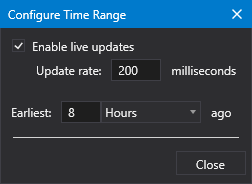
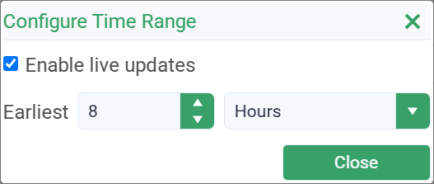
Click to open the Configure Time Range dialog box, where you can change the date and time range to be trended in this chart, whether to enable live data updates, the live update rate, the starting time for a trend, whether to use relative or absolute dates, and the actual date range. See To configure live updates and date ranges for more information. |
|
|
|
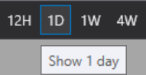
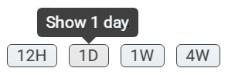
<configurable tooltips for quick range buttons>
|
If you have configured any quick range buttons, they will appear in the toolbar after the Date range button. Quick range buttons are configured in the ToolBarItems property for the chart. |
|
|
|
Save the chart's configuration to a file |
Click to save the currently configured chart as a default chart. See Default Chart for more information. |
|
|
|
Open a previously saved chart |
Click to open a previously saved default chart file. See Default Chart for more information. |
|
|
|
Print current view |
Click to print the current chart to a network printer or save as a .pdf file. |
|
|
|
Export as image |
Canvas Native view — Click to export the current chart as a .png (Portable Network Graphics) file, specify the path and file name, and click Save. CygNet TWC web view — Click to export the current chart as a .jpg file. The ExportedChart.jpg file will be stored in the Downloads folder. |
|
|
|
Export data to CSV |
Canvas Native view — Click to export the data values for each series to a comma-separated value (.csv) file, specify the path and file name, click Save. CygNet TWC web view — Click to export the chart's data values for each series to an ExportedChart.csv file in the Downloads folder. |
|
|
|
Reset to unzoomed state |
Click to return the chart to its original state after dragging, panning, or zooming. |
 To dynamically update chart data for a different facility
In run mode you might want to reconfigure a chart to receive its facility assignment from another control on the same screen. For example, a Tag Chooser can be added and configured to send facilities to an associated chart.
- In design mode configure a chart series to show data for a selected UDC, for example, Casing Pressure. Configure the chart to receive its facility and/or SiteService from the screen or another control on the screen, for example, a Tag Chooser.
- In run mode you can select a different facility in the Tag Chooser, which will send data for the same UDC for the new facility to the chart and dynamically update the chart accordingly, for example, Casing Pressure for facility A, facility B, or facility C, and so on.
To disable live updates / enable live updates for the current chart
To pause live updates in run mode:
- Click
 (Canvas Native view) /
  (CygNet TWC web view) on the toolbar to pause live updating for this chart.
To restart live updates in run mode:
- Click
 (Canvas Native view) /
  (CygNet TWC web view) on the toolbar to restart live updating for this chart.
See To configure live updates and date ranges for more information.
To configure the date and time range for the current chart
To change the date and time range settings for the current chart in run mode:
- Click
 (Canvas Native view) /
  (CygNet TWC web view) on the toolbar to open the Configure Time Range dialog box, where you can configure these properties.
 - See To configure live updates and date ranges for more information.
|
Canvas
|
TWC
|
 To quickly view different time ranges for the current chart
To quickly view a predefined window of time on a chart, configure the toolbar's quick range buttons on the chart's Properties pane.
When clicked, each button will reset the time range presented in the chart based on the button's configuration. For a button configured for 8 hours, the chart’s time range will be set so that it begins 8 hours from now with the left edge of the chart representing now. For a chart configured to be in live update mode, the chart will update to show this 8-hour window. The quick range only persists for the current runtime session.
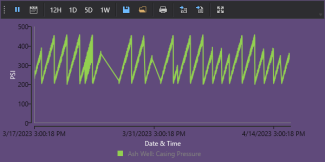
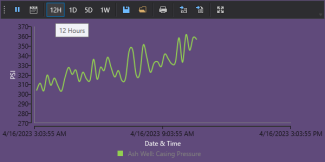
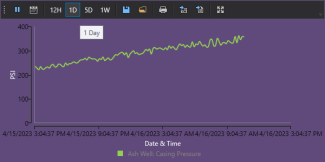
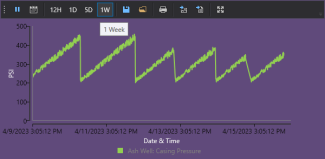
You can quickly cycle through various windows of data using quick range buttons. In the following chart, three quick range buttons give different views: a full chart (30 days of data), a 12-hour window, a 1-day window, and a 1-week (7 days) window.
|
Chart showing full range (30 days) |
Chart showing 12 hour window |
|
Chart showing 1 day window |
Chart showing 1 week window |
- See To configure the chart toolbar for more information.
To save the chart's configuration as a default chart
 To save a chart as a default chart:
- In run mode click
 (Save the chart's configuration to a file) on the toolbar to open the Save dialog box.
 - Choose the location where you want to save the default chart, either in:
- BSS — Select an APPS or BSS folder, and the desired sub-folder
- Local — Select a local or network file-system folder
- Type a File name and click OK. The chart will be saved as a Canvas chart file (.ccf).
- Assign the Canvas chart file (.ccf) to any screen using the Default Chart properties in the Properties pane.
To open a previously saved default chart
To open a previously saved default chart:
- Click
 (Open a previously saved chart) on the toolbar to open the Open dialog box.
 - Choose the location where the previously saved chart is stored, either:
- BSS — Select an APPS or BSS folder, and the desired sub-folder
- Local — Select a local or network file-system folder
- Find the desired Canvas chart file (.ccf) and click OK.
- See Default Chart for more information.
To print the chart
A chart can be printed to a connected network printer or saved as a .pdf file.
- Click
 (Canvas Native view) /
  (CygNet TWC web view) on the toolbar to open the Print dialog box to print the current chart.
 - Specify a printer and configure any required settings.
- Click Print or OK.
To export the chart
The chart provides various export options to export chart data as a .png (Portable Network Graphics) file or to a comma-separated value (.csv) file.
Export the chart as an image
- Canvas Native view — Click
 (Export as image) on the toolbar to export the current chart as a .png (Portable Network Graphics) file, specify the path and file name, and click Save.
 - CygNet TWC web view — Click
 on the toolbar to export the current chart as a .jpg file. The ExportedChart.jpg file will be stored in the Downloads folder.
Export the chart to a CSV file
- Canvas Native view — Click
 (Export data to CSV) on the toolbar to export the data values for each series to a comma-separated value (.csv) file, specify the path and file name, click Save.
 - CygNet TWC web view — Click
 on the toolbar to export the chart's data values for each series to an ExportedChart.csv file in the Downloads folder.
To drag, pan, and zoom in the chart
The chart allows dragging, panning and zooming in the chart plot area to examine a dense area of data points that cannot be seen clearly at the normal chart scale. See the Drag mode, Pan mode, and Zoom mode for configuration properties. Dragging, panning, and zooming change the view — the current location and magnification of the screen. Every time you drag, zoom, or pan, you establish a new view.
Drag over an area in a chart
- If dragging is enabled for Pan and or Zoom, click within the chart and drag the mouse over the area you want to examine.
- The chart will redraw to the selected area and the scroll bars will adjust accordingly.
- Click
 (Reset to unzoomed state) on the toolbar to return a chart to its original state.
Pan in a chart
- If panning is enabled on either or both axes, a scroll bar will display next to the horizontal axis and/or the vertical axis.
- Click the white handles on the scroll bars to drag the horizontal axis and/or the vertical axis to the desired scale. Note that panning is disabled if the axis is at its maximum scale.
- Left-click in the plot area to drag the chart horizontally and/or vertically to view data points more clearly.
- Click (Reset to unzoomed state) on the toolbar to return a chart to its unzoomed state.
Zoom into a chart
- If zooming is enabled on either or both axes, a scroll bar will display next to the horizontal axis and/or the vertical axis.
- Left-click in the plot area and continue holding down the mouse button while you draw a zoom area. Release the mouse button when you have drawn the desired zoom area to view data points more clearly. You can zoom multiple times over the same area. The scroll bars will adjust the horizontal axis and/or the vertical axis scale accordingly.
- You can also use the white handles on the scroll bars to adjust the horizontal axis and/or the vertical axis to the desired scale in the zoom area.
- Click (Reset to unzoomed state) on the toolbar to return a chart to its unzoomed state. Note that you cannot incrementally zoom out.
To highlight a particular series in the chart
By setting the Hover mode property in design mode you can highlight a series by hovering over it, and all others series in the chart will be faded.
To hide a series from display
Series editing is integrated into the legend; as you hover over the legend you can temporarily remove a series from the chart. Any series can be hidden on the chart during run mode.
- Click on the Check Box to the left of the series legend to hide the series. The series will be hidden on the chart.

- Click again on the Check Box to show the series.
To remove a series from the chart
As you hover over the legend you can remove a series from the chart completely. Any series can be removed from the chart during run mode.
- Click on the x to the right of the series legend.

- Click Remove to confirm the series removal. The series will be removed from the chart. If it is the last series on the chart, the axes will be removed as well.
- To see all series again, you will need to close and reopen the screen containing the chart.


