The following procedure explains how to schedule an MSS task. All task types use properties on the Schedule page; however, each task type uses an additional page unique to that task type.
For more information, see the subsections below:
You can schedule blackouts in conjunction with tasks; for more information, see Blackouts below or Scheduling a Blackout.
The following examples illustrate two basic, common ways to schedule a task. For simplicity, neither example includes blackouts.
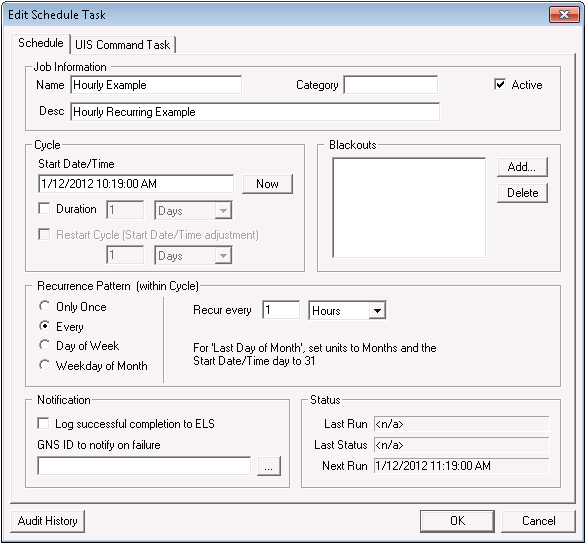
The following scheduled task executes once an hour for an indefinite duration starting January 12, 2012 at 10:19:00 AM. Note that the Next Run field confirms the next scheduled task run after the one specified in the Start Date/Time field.
The following scheduled task executes once a minute for a one-hour duration at the beginning of every day starting January 12, 2012 at 08:00:00 AM. Note that the Next Run field confirms the next scheduled task run after the one specified in the Start Date/Time field.


The following table lists and describes properties of the Schedule page.
| Property | Description |
|---|---|
| Job Information | |
|
Name |
The user-defined name of a task (free-form text, 20 characters). |
|
Category |
The user-defined category of a task (free-form text, 8 characters). This is optional. |
|
Active |
Indicates that a task is active (Y) or inactive (N). |
|
Desc |
A description of the task. This parameter is optional. |
| Cycle | |
|
Start Date/Time |
This parameter sets the date and time after which a task goes into effect. Depending on your specific configuration, a task might not be issued starting with this date and time; it is issued the first time after this date when all specified conditions exist. If you want the start date and time to be the current time, click Now. A future start date is supported. |
|
Now |
Click Now to set the Start Date/Time field to the current date and time. |
|
Duration |
The length of time that a job runs after the start date/time. If unchecked, the job runs continuously according to its recurrence pattern. This parameter is optional. For example, if you specify a current start date and time with a duration of 1 day, the job will run for that day only. |
|
Restart Cycle |
Defines the interval by which to restart the specified cycle. This option is available only if Duration is set. This parameter is optional. For example, if the duration is 1 hour and the restart cycle is 1 day, the job will run for 1 hour every day at the start time. |
| Blackouts | |
|
Add |
To apply an existing blackout or to create a new blackout on an ad hoc basis for the selected task, click Add. Select from the predefined blackouts in the Select Blackouts dialog box or click New to create a new blackout on an ad hoc basis. Finally, select the desired blackout and click OK. |
|
Delete |
Highlight the blackout you want to delete and click Delete. This only deletes the blackout from the selected task; it is not deleted from the master Blackouts list. |
| Recurrence Pattern (within Cycle) | |
|
Only Once |
Select if a task is to occur once. It occurs at the specified Start Date/Time. |
|
Every |
Select if the task recurs on a regular interval. Enter a quantity and time unit by which to recur. If you want the recurrence to occur the last day of the month, set recurrence units to Months and the Start Date/Time to day 31 of the month to start. For instance, 1/31/2019. |
|
Day of Week |
Select if the task recurs on a weekly basis on set days. |
|
Weekday of Month |
Select if the task recurs on a set day of the week for a set week of each month. |
| Notification | |
|
Log successful completion to ELS |
Check to enable the option to log job completion to the ELS. This parameter is optional. Successful completion occurs when the MSS successfully issues the job to the associated service, not when a field device replies to the poll. |
|
GNS ID to notify on failure |
Check to notify a GNS ID if a job fails on send. This parameter is optional. |
| Status | |
|
Last Run |
Timestamp of the most recent job run. |
|
Last Status |
The status of the most recent job run. |
|
Next Run |
Timestamp of the next scheduled job run. |
|
|
|

