Navigation by Facility
The navigation by facility feature allows you to navigate to a specific screen by selecting a CygNet facility. You can also specify optional facility record properties to be included when the navigation is triggered. Several navigation modes are available depending on your desired usage:
- hyperlink to a facility's associated screen in a new window
- hyperlink and replace the current screen with a facility's associated screen (with or without a navigation toolbar)
- notify any Navigator controls on the current screen to replace the active screen in the Navigator with a facility's associated screen (with or without a navigation toolbar)
- navigate to a facility screen by firing a screen script event
Configuration of this feature is required in the Canvas global settings, in the facility record in your CygNet system, and in the Facility navigation mode property on the hyperlinking screen.
If navigation is handled by a script event other APIs must be invoked to implement the feature; those APIs are described below.
Contents of this Topic
See the following sections for more information about this feature:
Canvas Facility Screen Navigation
Canvas uses a facility attribute in the facility record to define the screen path to display when navigating by facility. You need to tell Canvas the facility attribute that contains the associated screen. This is configured on the Canvas global settings in the Backstage view. In the same dialog box, you can also configure other facility record properties to send along when the navigation is triggered.
 To configure the facility attribute and other optional facility record properties
- In the Backstage view, go to Settings, and click Facility navigation
 to open the Facility Navigation dialog box.
|
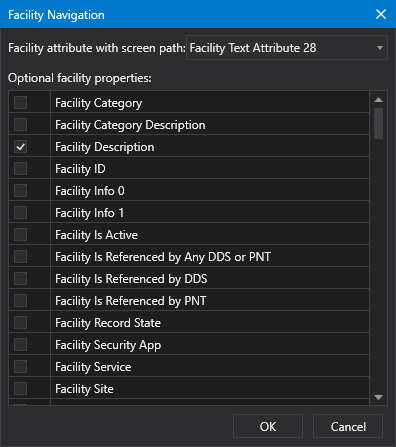
Facility navigation configuration
|
- Select the facility attribute previously configured in the facility record in the Facility attribute with screen path drop-down menu.
- Optionally, select any other facility record properties that you want to send when the navigation is triggered.
- Once the facility attribute is configured, click OK to save the configuration to the global settings file.
- Or click Cancel to abort and close the Facility Navigation dialog box.
CygNet Facility Attribute
In order to navigate to a specified screen by selecting a CygNet facility, the associated screen path must be configured in a facility attribute in the facility record for the facility. Select an unused text attribute that allows enough characters to specify the length of a screen file path, for example, attr20-attr26 allow 40 characters, attr27 allows 60 characters, or attr28 and attr29 allow 80 characters.
Note: The Navigate by Facility feature only supports BSS-based screens; all linked screens must be stored on a BSS.
To configure an associated screen in a facility attribute
- In CygNet Explorer select the Facility Service and locate the facility you wish to modify.
- Right-click and select Properties to open the record for the facility.
|
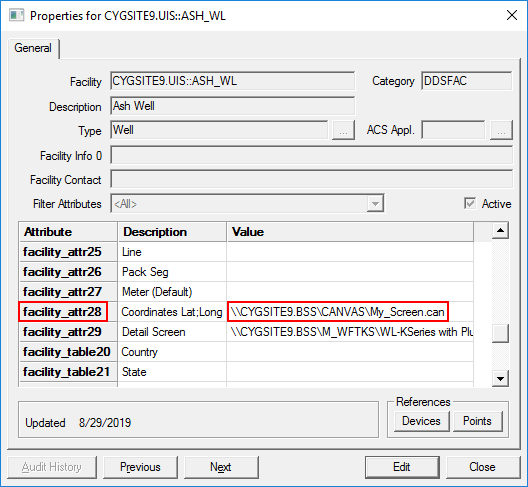
Facility attribute configuration
|
- Select an available text attribute that allows enough characters to specify the length of a screen file path.
- Click Edit to enable editing and double click the Value field for the attribute.
- Type the full screen file path. The screen must be in a BSS.
- Click OK, then Save, then Close.
Screen Navigation Mode (FacilityNavigationMode property)
The Facility navigation mode (FacilityNavigationMode) property is included on the screen object to determine how a screen will handle a request to navigate to another screen via a facility. This property is used with the NavigateByFacility or OpenedViaHyperlink events to link to a facility's associated screen or replace a current screen in a Navigator control with a facility's associated screen. Click  to reveal a drop-down menu of options:
- Script event —
Fires a NavigateByFacility script event on the screen that provides the associated screen path, as well as any optional facility record properties, to send when this navigation is triggered. The EventArgs type for this event is:
Canvas.Shared.Events.NavigateByFacilityEventArgs |
The associated screen path for the facility is configured in the facility record in CygNet Explorer. The screen path facility attribute, and any optional facility record properties to be included when this navigation is triggered, is configured in the Backstage view.
- Hyperlink - Open — Opens the facility's associated screen in a new window.
- Hyperlink - Replace — Replaces the current screen with the facility's associated screen.
- Hyperlink - Replace with navigation — Replaces the current screen with the facility's associated screen and adds a .
- Navigator - Replace — Notifies any Navigator controls on the current screen to replace the active screen with the facility's associated screen.
- Navigator - Replace with navigation — Notifies any Navigator controls on the current screen to replace the active screen with the facility's associated screen and add a .
The default value is Hyperlink - Open.
NavigateToScreenByFacility method
The NavigateToScreenByFacility method is included on the screen object and allows you to navigate to a specific screen by selecting a CygNet facility.
Example
The script call is as follows:
|
Objects.Screen.NavigateToScreenByFacility(facility);
|
The correlation between a facility and its associated screen is done via a facility attribute. You will need to configure the facility attribute that references the associated screen in your CygNet system for each facility using CygNet Explorer.
NavigateByFacility event
The Navigate By Facility event is called when the screen receives a request to navigate by a specific facility tag.
|
var argument = args as Canvas.Shared.Events.NavigateByFacilityEventArgs;
|
OpenedViaHyperlink event
Screens opened via a hyperlink (all options above except ScriptEvent) must fire the OpenedViaHyperlink event on the screen object.
The hyperlinked screen should have its ambient facility set to the provided facility.
Script Example
The data object in that method is a Canvas.Shared.ViewModel.FacilityNavigationDetails object that provides the facility, its associated screen, and any optional properties:
|
public class FacilityNavigationDetails
{
public FacilityTag FacilityTag { get; set; }
public string ScreenPath { get; set; }
public Dictionary<string, object> OptionalProperties { get; set; } = new Dictionary<string, object>();
}
|
Other Canvas Usage of Navigation by Facility
Alarm Notifier
The Alarm Notifier uses navigation by facility to link to a facility's associated screen. The banner provides two links to related screens:
- Total unacknowledged alarms box — You can link to a custom alarm screen from this box. Configuration for this link is done on the Backstage view.
- Individual alarm box — You can link to a detail screen for an associated facility from each alarm box. Configuration for this link is done in the Canvas global settings and in the facility record in your CygNet system. See Screen Navigation Mode for more information.
The navigation mode for both links is determined by the Facility navigation mode property setting on the screen displaying the Alarm Notifier. Any linked screens must be stored in the BSS.
See Alarm Notifier Overview for more information.
|
Click the thumbnail to see an Alarm Notifier
link to other associated screens
|
|
Search Box
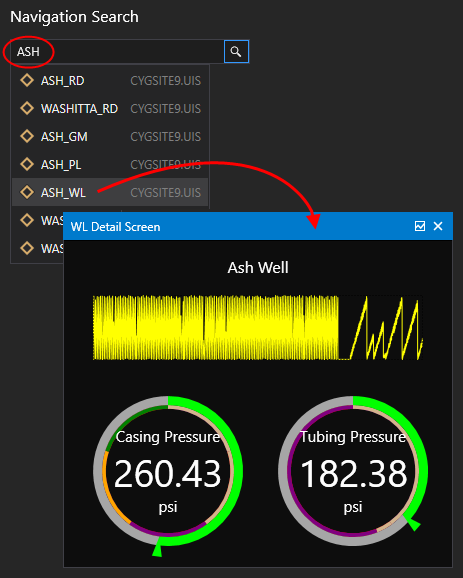
The search box uses navigation by facility to link to a facility's associated screen using any of the navigation modes described above. The search box's Selection action property must be set to Navigate. Any linked screens must be stored in the BSS.
See To configure a search box to navigate to another screen for information about this option.
|
Click the thumbnail to see a search box
sending a facility to an associated screen
via the Hyperlink - Open navigation mode
|
|
|

|
|