To configure a search box
- In design mode, create a new Canvas screen or object.
- Find the search box on the Toolbox pane and drag a desired object to your screen.
-
Use the Settings pane to apply common settings (sizing, grouping, alignment, etc.) to this object (and others) on your screen.
- Optionally, use the Name property to rename the object if you plan to reference it in another screen or control, or plan to script this control.
- Configure the Style property.
- Style —
The Style property defines the style sheet applied to an object on a screen. A style sheet consists of a predetermined list of properties and property values configured for a particular control type.
- Click
 to reveal a drop-down menu of predetermined styles configured for the selected control.
 - Select a desired style and its properties will be applied to the control.
- Alternately, you can create a new style based on other property values configured for the control.
- Or you can select <None> to remove subscription to any style.
Styles are created in two ways:
- In the control's Properties pane. Click
 (Add a new style based on this control) next to the Style property, after you have configured property values in the Properties pane. See Add a new style based on a control for more information.
 - In the Canvas Settings in the Backstage view. The default style for any control is configured in the Backstage view. See Manage style sheets in the Backstage view for more information.
Tip: You can also change a control's Style on the Controls view of the Screen pane.
- Click
- Configure the Location properties. See To configure location, size, resizing, layer, and visibility properties below.
- Configure the Script property.
- Include in script —
The Include in script check box indicates that the control will appear in the objects collection of the screen (if scripting is enabled). To optimize performance, best practice dictates that you only include the controls you need to manipulate via script. Other controls should be excluded. When you add an event to a control, it will be automatically added to script and the Include in script property (and the In Script check box on the Controls view) will be set to True.
Tip: You can also change the Include in Script setting on the Controls view of the Screen pane.
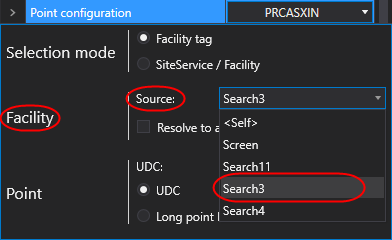
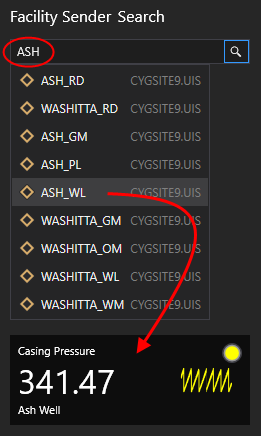
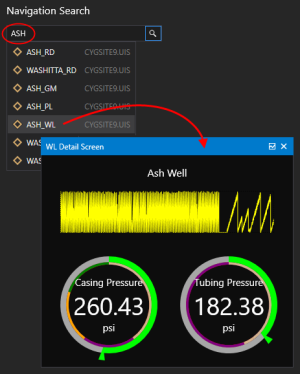
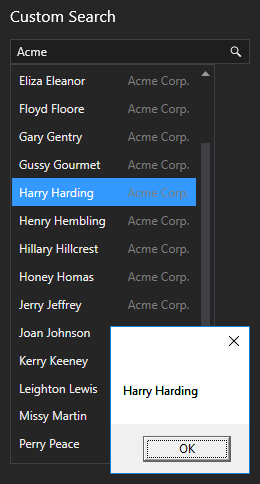
- Configure the Search properties. There are a variety of searches you can configure with the search box, see the following depending on the type of search:
Facility Search
- To configure a search box as a facility sender
- To configure a search box to navigate to another screen
- To configure a search box to execute a scripted selection action
Custom Search
- Configure the Generic properties:
- String — The String property specifies a generic string property that can be used when scripting this control. Type a string and reference it in your script as necessary.
- Yes/No — The Yes/No property specifies a generic Boolean yes/no property that can be used when scripting this control. Click the check box to enable the property and reference it in your script as necessary.
- Configure other search properties.
- Save the screen.
- Run the screen to test your configuration.
 (Settings) to the right of the control in design mode) or on the
  to open the