
The Relative Facility Tree has numerous properties available for configuration in the Properties pane. The following topic describes a basic workflow for configuring this control. The specific appearance and functionality of the object you create depends on your needs and implementation of the control's properties, each of which is described below.
 To configure a Relative Facility Tree
- In design mode, create a new Canvas screen or object.
- Find the Relative Facility Tree on the Toolbox pane and drag a desired object to your screen.
-
Use the Settings pane to apply common settings (sizing, grouping, alignment, etc.) to this object (and others) on your screen.
- Optionally, use the Name property to rename the object if you plan to reference it in another screen or control, or plan to script this control.
- Configure the Style property.
- Style — The Style property defines the style sheet applied to an object on a screen. A style sheet consists of a predetermined list of properties and property values configured for a particular control type.
- Click
 to reveal a drop-down menu of predetermined styles configured for the selected control.
 - Select a desired style and its properties will be applied to the control.
- Alternately, you can create a new style based on other property values configured for the control.
- Or you can select <None> to remove subscription to any style.
Styles are created in two ways:
- In the control's Properties pane. Click
 (Add a new style based on this control) next to the Style property, after you have configured property values in the Properties pane. See Add a new style based on a control for more information.
 - In the Canvas Settings in the Backstage view. The default style for any control is configured in the Backstage view. See Manage style sheets in the Backstage view for more information.
Tip: You can also change a control's Style on the Controls view of the Screen pane.
- Click
- Configure the Location properties. See To configure location, size, resizing, layer, and visibility properties below.
- Configure the Script property.
- Include in script —
 The Include in script check box indicates that the control will appear in the objects collection of the screen (if scripting is enabled). To optimize performance, best practice dictates that you only include the controls you need to manipulate via script. Other controls should be excluded. When you add an event to a control, it will be automatically added to script and the Include in script property (and the In Script check box on the Controls view) will be set to True.
 Tip: You can also change the Include in Script setting on the Controls view of the Screen pane.
- Configure the Relative Facility Tree properties to create the hierarchy used in the control. See To create a hierarchy based on relative facility links below.
- Configure the Generic properties:
- String — The String property specifies a generic string property that can be used when scripting this control. Type a string and reference it in your script as necessary.
- Yes/No — The Yes/No property specifies a generic Boolean yes/no property that can be used when scripting this control. Click the check box to enable the property and reference it in your script as necessary.
- Configure any other Relative Facility Tree properties.
- Save the screen.
- Run the screen to test your configuration.
To configure location, size, resizing, layer, and visibility properties
- Find the Location properties and configure the size and location properties for the control:
- Height —
The Height property specifies the height of the control (or screen).
Tip: You can also change the height of a control using the Settings pane (click on the
 (Settings) to the right of the control in design mode) or on the Controls view of the Screen pane.
 - Horizontal resize mode —
The Horizontal resize mode property specifies whether and how the control dynamically moves or resizes horizontally when the screen is resized in run mode. Options include:
- None — No resizing occurs.
- Shift — The object will shift horizontally.
- Expand — The object will expand or shrink horizontally the same number of pixels as the screen.
- Proportional — The object expands or shrinks proportionally to the screen.
The default value is None.
- Layer — The Layer property specifies the name of the layer to which this object is assigned. Layers can be used to show, hide, and edit multiple controls on one layer without affecting controls on another layer.
- Type the name of the layer into the Layer field (the name can be a previously created layer or a new layer).
- All layers are listed on the Layers pane, where you can manage the layers for the screen in design mode and run mode.
Tip: You can also edit a control's Layer on the Controls view of the Screen pane.
Note: Layer visibility can be controlled at runtime via the AddLayer, HideLayer, SetLayerVisibility, and ShowLayer methods on the Screen object.
- Lock — The Lock property indicates whether the control is locked to the current position. A locked control cannot be moved via click and drag, or nudged with the arrow keys, or resized.
Tip: You can also toggle the lock setting of a control using the Settings pane (click on the
(Settings) to the right of the control in design mode). - Vertical resize mode —
The Vertical resize mode property specifies whether and how the control dynamically moves or resizes vertically when the screen is resized in run mode. Options include:
- None — No resizing occurs.
- Shift — The object will shift vertically.
- Expand — The object will expand or shrink vertically the same number of pixels as the screen.
- Proportional — The object expands or shrinks proportionally to the screen.
The default value is None.
- Visible — The Visible check box indicates whether the control is visible in run mode.
Tip: You can also change a control's Visible setting on the Controls view of the Screen pane.
- Width —
The Width property specifies the width of the control (or screen).
Tip: You can also change the width of a control using the Settings pane (click on the
(Settings) to the right of the control in design mode) or on the Controls view of the Screen pane. - X —
The X property specifies the location of the control along the horizontal axis. Use the up, down, left, and right arrow keys to nudge a control by 1 pixel. Arrow moves a control by 1 pixel. Ctrl+Arrow moves a control by 10 pixels. Ctrl+Shift+Arrow moves a control by 100 pixels.
Tip: You can also change the location of the control using the Settings pane; click on the
(Settings) to the right of the control in design mode. - Y —
The Y property specifies the location of the control along the vertical axis. Use the up, down, left, and right arrow keys to nudge a control by 1 pixel. Arrow moves a control by 1 pixel. Ctrl+Arrow moves a control by 10 pixels. Ctrl+Shift+Arrow moves a control by 100 pixels.
Tip: You can also change the location of the control using the Settings pane; click on the
(Settings) to the right of the control in design mode. - Z index —
The Z index property is used to determine the order in which controls are layered on top of each other. Controls with higher values will draw on top of those with lower values. The newest control added to a screen will always have the highest value and will be the top layer. Two or more controls can be on the same index (layer).
Tip: You can also change the Z index of a control using the Settings pane (click on the
(Settings) to the right of the control in design mode) or on the Controls view of the Screen pane.
- Configure any other control properties.
- Save the screen.
- Run the screen to test your configuration.
To create a hierarchy based on relative facility links
- Find the Relative Facility Tree properties for the control. The options include:
- Delay loading — The Delay loading property indicates whether to delay data loading for the control. Use this to stop unwanted messaging to the service, for example, if you don't want the control to load when the screen first opens. You can turn off the DelayLoading flag via script, then use Refresh to trigger data loading after the delay.
- Facility filter — Use the Facility filter property to limit the data presented in the control to any CygNet facility attribute set up for your CygNet installation. Click
 to open the Facility Filter dialog box where you can create a custom filter rule. The filter rule is displayed in the property label; you do need to open the Facility Filter dialog box to edit the rule.
 - Relative link — The Relative link property is where you configure the relative facility link for the Relative Facility Tree. Click to reveal a drop-down menu of all available relative links. Select a link from the list.
- Selection action — The Selected action property specifies the action to take when a result is selected.
- FacilitySender — The control acts as a facility sender and sends the selected facility to any controls configured to receive it. This only works if the selected result includes a facility.
- Navigate — The control will navigate to the selected facility's associated screen or the selected screen. The navigation mode is determined by the Facility navigation mode property setting on the screen displaying the control. See Navigation by Facility for more information.
- Script — Executes a script event (Item Selected) when selecting a facility from the tree.
- SiteService — The SiteService property specifies the source SiteService for the Relative Facility Tree. Options include:
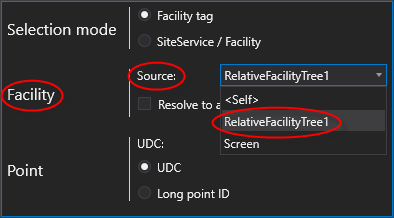
- Source — Options include <Self> or Screen.
- <Self> — Select <Self> to explicitly configure the SiteService for this control or screen element. A SiteService selector is displayed:
- SiteService — The SiteService property specifies the SiteService for which the control (or screen or screen element) is to display data. Click to select a service using the Select Service dialog box.
- SiteService — The SiteService property specifies the SiteService for which the control (or screen or screen element) is to display data. Click
- Screen — Select Screen to receive the SiteService from the screen for this control or screen element. By default, the sender is the Screen control if no other senders have been configured.
- <Self> — Select <Self> to explicitly configure the SiteService for this control or screen element. A SiteService selector is displayed:
- Source — Options include <Self> or Screen.
- Configure any other control properties.
- Save the screen.
- Run the screen to test your configuration.
To configure a Relative Facility Tree as a facility sender
|
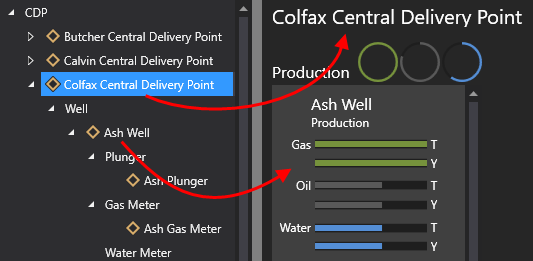
Select a facility from the hierarchy and the Relative Facility Tree will function as a facility sender and send the facility to any controls on the screen configured to receive it. This type of navigation does not require any scripting.
|
|
 To configure a Relative Facility Tree to navigate to another screen
|
Select a facility from the hierarchy and the Relative Facility Tree will navigate to the selected facility's associated screen or the selected screen. The navigation mode for the targeted screen is determined by the Facility navigation mode setting on the screen displaying the Relative Facility Tree. There are six facility navigation modes for linking to associated screens; see Navigation by Facility for more information about navigating from a Relative Facility Tree results. Most of the navigation modes do not required any scripting, although the Script event option does.
|
To configure a Relative Facility Tree to execute a scripted selection action
Select a facility from the search results and the Relative Facility Tree will execute a script event to perform some other action.
- Add a Relative Facility Tree to your screen.
- Configure the following property in the Properties pane:
- Selection action — Select the Script option. Executes a script event (Item Selected) when selecting a facility from the tree.
- On the Events pane enable the Result Selected event.
- On the Script view write appropriate script to fire an event for the selected facility.
- Configure any other Relative Facility Tree properties.
- Save the screen.
- Run the screen to test your configuration.


