Getting Started with Canvas View
Canvas.View has many of the same interface features as the Canvas application, including a Backstage view for opening screens, saving layouts, and exiting the application.
Click File to access the Backstage view providing the following options:
- Open — Open a previously created Canvas screen or object from an APPS or BSS folder, from the Recent Screens list, from an APPS or BSS folder or a local or network file-system folder. You can open any CygNet Studio screen (.csf) in Canvas View.
- Save As — Save the current layout to an APPS or BSS folder or to a local or network file-system folder
- Exit — Exit the current screen and the Canvas.View application
Click  (back) to return to the main Canvas.View workspace.
Start Canvas.View
Start Canvas.View in one of the following ways:
- You can always start the application using Windows Explorer:
In the CygNet\Bin folder on your system, double-click the Canvas.View executable file (Canvas.View.exe) to open the product.
- If you have previously placed a shortcut for the application on your desktop, double-click to launch the application.
- If you have previously pinned the application to your taskbar or start menu, click to launch the application.
- You can also start Canvas.View from a command line, described here.
Open a Canvas Screen or a Canvas.View Layout in Canvas.View
- On the Canvas.View toolbar, click File to access the Backstage view to open existing screen files or layouts.
- In the Backstage view, click Open and do one of the following, depending on where your files are located:
 If your screen has been opened recently it will be listed in the recent files list. Click Recent to view the list of recently opened and pinned screens. See Opening Recent Screens for more information.
 If your screen or layout files are stored in a local or network file-system folder rather than in your CygNet folder, click Browse to access an Open dialog box and navigate directly to the location of the selected file, and then double-click to open.
 If your files are stored in your CygNet folder, click to select an APPS or BSS folder:
 Click to select a folder
 Click to open the selected screen file or click
  to open the selected Canvas.View layout in the Canvas.View screen window
Move Screens Around
Any screen opened in Canvas.View will start in a floating state but can be docked in place as desired. The Canvas.View interface works in the same manner as the Canvas interface with respect to interacting with screens in the window. See Customizing the Workspace for more details on moving, floating, docking, tabbing, auto hide, and hiding screens in Canvas.View.
Save Canvas.View Layout
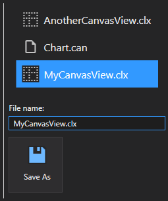
When you move screens around in the Canvas.View window, the configuration (or "layout") of the view is changed. You can save the Canvas.View layout for later use as a .clx file in a location of your choice. Persisting a Canvas.View layout that consists of numerous Canvas screens is a useful way of distributing a set of screen packages.
To save the Canvas.View layout, do the following:
- On the Canvas.View toolbar, click File to access the Backstage view.
- Click Save As to access the save as options.
-
To save the layout in a local or network file-system folder rather than in an APPS or BSS folder, click Browse to access a Save As dialog box and navigate directly to the location where you want to save the file. Specify a file name, and the layout will be saved as a Canvas Layout File (*.clx).
-
 To save the layout in an APPS or BSS folder, click to select an APPS or BSS folder:
-
Click to select a folder.
- Specify a file name of the layout and click Save As.
Access a Default Chart in Canvas.View
There are two ways to open a default chart in Canvas.View:
- Click
 (Open chart) on the Canvas.View toolbar to open a previously saved default chart. Choose the location where the default chart is saved in the Open dialog box, either in an APPS or BSS folder or a local or network file-system folder.
 - Click
 the blue chart button in the upper right corner of any open Canvas screen to open the default chart associated with that screen. If no default chart is configured, Canvas will allow you to select the location where the default chart is saved from the Open dialog box, either in an APPS or BSS folder or a local or network file-system folder.
See Default Chart for more information about the default chart feature.
Exit Canvas.View
- On the Canvas.View toolbar, click File to access the Backstage view.
- Click Exit to close Canvas.View.


