
|
In your script, you may want to interact with the control objects on your screen (buttons, grids, charts, etc.). For ease of access, the control objects are grouped under the header Objects. To interact with the control objects on your screen via script, type "Objects." into the script view. After you type the period, Microsoft's IntelliSense will present you with a list of available elements to help you make the next entry. Use "Objects.<ControlName>." to access the properties, events, and methods available to that specific control. For example, to access the "Text" property of a Text Tool named "TextTool1" select "Objects.TextTool1.Text". See the Simple Screen example provided in the Getting Started with Canvas topic for an illustration of this usage. |
|
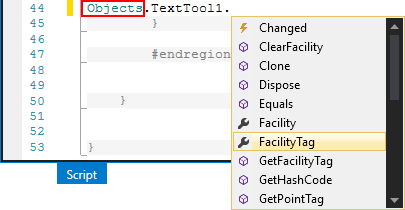
In the list of available elements for each object, the following icons help identify the element type:
|
|
Property — Use the Properties pane to interact with the properties for the selected screen or control. The supported script properties are listed and described in the Properties topic for each control. For example, Chart Properties. A reference topic is also provided to view ALL Canvas properties: All Canvas Control Properties. | |
|
|
Event — Use the Events pane to interact with the events for the selected screen or control. The supported script events are listed and described in the Events topic for each control. For example, CygNet Grid Events. A reference topic is also provided to view ALL Canvas events: All Canvas Control Events.. | |
|
|
Method — Use the Script view of the Screen pane to interact with the methods for the selected screen or control. The supported script methods are listed and described in the Methods topic for each control. For example, Text Tool Methods. A reference topic is also provided to view ALL Canvas methods: All Canvas Control Methods. |


Screen Elements
There is also an object on every screen that stores properties of the screen itself (color, appearance, etc.), that is analogous to TheFrame/TheView in CygNet Studio. To interact with screen properties via script, type "Objects.Screen.<PropertyName>." into the script view, in a similar manner. Note that Objects.Screen is fixed, whereas Objects.<ControlName> would change if the control name is ever modified. See Screen Properties, Screen Events, and Screen Methods for more information.


