The Navigation Button has numerous run-mode options:
-
You can dynamically resize your screen and any controls within. See Resizing Screens for more information about resizing Canvas screens.
- Other run-mode options are list below:
 To navigate to another screen
Click the Navigation Button to open another screen using the desired hyperlink mode and pass button's facility to other controls on the screen configured to receive it AND to the receiving screen. Depending on the option selected the following will happen:
- Open — Open a designated screen in a new window (default).
- Modal open — Open a designated screen in a new modal window. A modal window is a type of popup that is subordinate to a parent window that appears in front of the parent and usurps the parent’s control. You cannot interact with the parent window until the modal window has been closed. This type of window is used when you want a user to focus on or interact with information in the popup.
- Open and close — Open a designated screen in a new window and close the current screen.

- Replace — Replace the current screen with the designated screen.
- Replace with navigation — Replace the current screen with the specified screen and add a navigation toolbar to the top of the screen.
- Close — Close the current screen.
To acknowledge an alarm via the context menu in the Canvas Native view
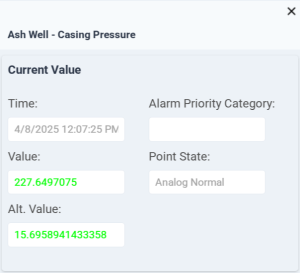
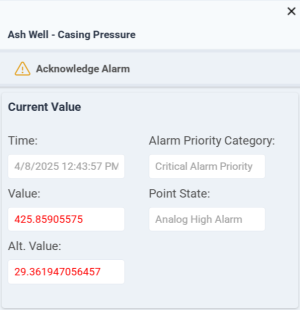
When an alarm is reported to the CAS, its state is "unacknowledged", meaning that the alarm is new and that a user or the system has not acknowledged its presence. An unacknowledged alarm may be identified by the color settings for the control (background, text, border, ring, bar, fill, or marker color), if configured to represent the point state of the associated point. Additionally, some controls may blink to warn of a point in alarm, if configured to do so.
|
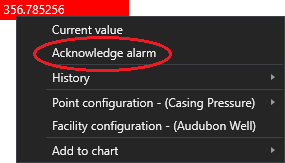
Acknowledge the alarm from the context menu:
See the control properties for more information about configuring alarm acknowledgment options. |
Canvas Native view |
 To access current value, history, and configuration information via the context menu in the Canvas Native view
Right-click the context menu to access several CygNet system dialog boxes for information about the point and facility associated with the object, where you can modify properties and values as needed. The associated point/UDC and facility is identified in the context menu, so you know what you are viewing.
|
Grid cell context menu |

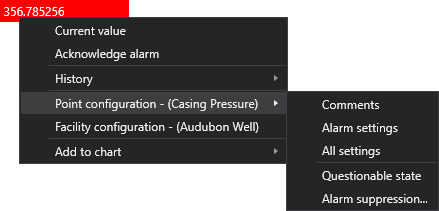
Note: The context menu options change depending on the point configuration:
- If the control is configured to display long point ID, the Facility configuration menu option is hidden.
- If the facility description is blank, then the menu will show the facility ID in the Facility configuration option.
- If the point description is blank, then the menu will show the UDC/long point ID (based on configuration).
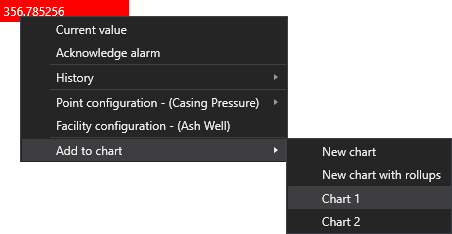
To add values to a default chart via the context menu in the Canvas Native view
Several controls support the option to add point values as a new series to a default chart, providing additional visual context for trended data:
|
Grid cell context menu |
 To access other custom context menu items in the Canvas Native view
-
If any custom context menu items have been configured for the Navigation Button, select the item from the menu.
To view current value, acknowledge alarm, and view a chart via the context menu in the CygNet TWC web view
|
The CygNet Thin Web Client supports its own context menu visible in the web view. Perform the following actions from the TWC context menu:
See Using the Thin Web Client Context Menu for more information. |
|
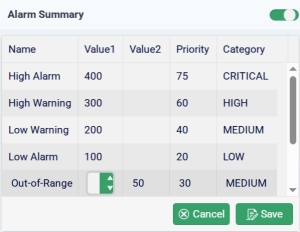
 (Edit) then click on the Value or Priority you want to edit.
  (Cancel) to abort and return to the read-only mode.
 (
( (Close) to close the context menu and return to the TWC page that launched the menu.