The Alarm Grid has numerous run-mode options:
- A load indicator will let you know that Canvas is processing and loading data to your grid(s).
-
You can dynamically resize your screen and any controls within. See Resizing Screens for more information about resizing Canvas screens.
- Other run-mode options are list below:
 To sort an Alarm Grid
- If a column has been configured to Sort numerically, click that column header to sort the grid. Clicking the column header moves between the three states: sort ascending, sort descending, and unsorted. A small arrow indicates the sort order.
- In the TWC Web view, if a cell in a numeric column contains a non-numeric value, a placeholder ({non-numeric}) will be shown in its place.
To filter an Alarm Grid using the toolbar filters
|
Alarm Grid toolbar showing filters and tooltip |
 To filter an Alarm Grid
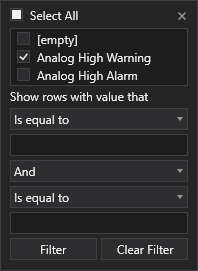
All grid headers contain a filtering tool to limit the rows displayed in the grid. Click  /
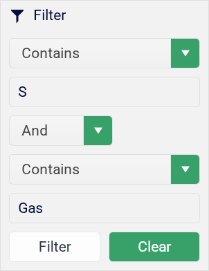
/  to the right of a column header to filter the rows displayed in a grid based on values within the selected column. Two sets of qualifying filter criteria can be specified, and the criteria can be compounded (use all rules by selecting And or use either rule by selecting Or). The options in the filter tool are described below.
Filter in Canvas Native view
|
Filter in CygNet TWC web view
|
 To edit cells in a generic column in an Alarm Grid
- If a generic column allows editing, click any cell and type a new value. For example, a user could make quick data changes to facilities in a grid format. Edited values are not saved anywhere but in the grid, but they can be saved or otherwise manipulated via script.
To send single or multiple facilities to another control on the current screen or to another screen
The Alarm Grid and CygNet Grid can be configured to send a single facility or multiple facilities to other controls using the Facility sender mode property settings. This property determines what data to pass from grid to grid, from a grid to other controls on your current screen, or from a grid to other controls on a hyperlinked screen.
Facility Sender Mode
The Facility sender mode property determines how facilities are sent to other controls. There are four options:
- None — No facilities are sent. This is the default value.
- Single click — A single click on a row will send a single facility to a receiving control on the same screen.
- Double click — A double click on a row will send a single facility to a receiving control on the same screen. This option supports two actions when a row is double-clicked: 1. Sending a facility to anther control on the same screen; and 2. Sending a facility to another screen. See the note below.
- All facilities — As soon as all facilities are received they will be sent to the receiving control on the screen. No click is required.
Note:
If Double click is selected for the Facility sender mode property, and Hyperlink is selected for the Double click mode property, and a Hyperlink mode and Screen path are configured, two actions will be performed when a row is double-clicked:
-
the selected facility will be sent to any control(s) on the screen configured to receive its facility from the grid
- and -
-
the selected facility will be sent to the screen configured in the Screen path property.
Script Event
If Double click is selected for the Facility sender mode property, and Script is selected for the Double click mode property, the selected facility will be sent to any control(s) on the screen configured to receive its facility from the grid, and the script event Double Click Cell will fire using the facility received from the grid. 
Usage Notes
- An Alarm Grid and a CygNet Grid can act as a facility receiver, or a facility sender, or both.
- An Alarm Grid and a CygNet Grid will send a single facility on a single or double-click.
- Since the Alarm Grid is point-based it can have multiple rows representing a single facility. During facility sending (on either a single or double-click), the Alarm Grid will send only one facility to the receiving control. When sending facilities in All facilities mode, only the unique list of facilities is sent.
- An Alarm Grid and a CygNet Grid will send All facilities to other controls as soon as they are received by the grid.
- An Alarm Grid will send All facilities only if new facilities have been received.
- A CygNet Grid can have one facility per cell, however during facility sending to an Alarm Grid, the receiving Alarm Grid will show all the alarm rows that belong to the single facility.
To hyperlink to another screen in the Canvas Native view and the CygNet TWC web view
The grid supports hyperlinking to another screen via a double-click action. The Facility sender mode must be set to Double click. The Double click mode must be set to Hyperlink. Set the desired mode in the Hyperlink mode property. Set the destination Screen file source and Screen path.
Double click a row in the grid to open another screen. Depending on the Hyperlink mode selected, the following will happen:
- Open — Open a designated screen in a new window (default).
- Modal open — Open a designated screen in a new modal window. A modal window is a type of popup that is subordinate to a parent window that appears in front of the parent and usurps the parent’s control. You cannot interact with the parent window until the modal window has been closed. This type of window is used when you want a user to focus on or interact with information in the popup.
- Open and close — Open a designated screen in a new window and close the current screen.

- Replace — Replace the current screen with the designated screen.
- Replace with navigation — Replace the current screen with the specified screen and add a navigation toolbar to the top of the screen.
- Close — Close the current screen.
Note: Grid cells can display a different facility from that configured for a grid row. The double-click hyperlink action will pass the cell or row’s facility to other controls on the screen configured to receive it AND to the receiving screen.
To work with alarms via the context menu in the Canvas Native view
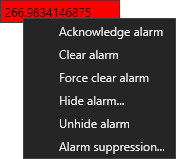
The Alarm Grid context menu provides several actions that can be performed for alarms in the grid when running in the Canvas Native view.
|
When an alarm is reported to the CAS, its state is "unacknowledged" meaning that the alarm is new and that a user or the system has not acknowledged its presence. An unacknowledged alarm may be identified by the color settings for the control (background, text, and border color), if configured to represent the point state of the associated point. Additionally, the control may blink to warn of a point in alarm, if configured to do so. The following table describes the fixed context menu options for the Alarm Grid. |
Alarm Grid context menu |
| Canvas Native viewContext Menu Item | Description |
|---|---|
|
Acknowledge alarm |
Right-click the alarm and select Acknowledge alarm to acknowledge an alarm. If the alarm has already been acknowledged, this option is disabled. |
|
Clear alarm |
Right-click the alarm and select Clear alarm from the context menu to clear the alarm and remove it from the grid. An alarm record remains in the Alarm Grid until it is cleared. An alarm must be acknowledged before it can be cleared. The action for removing a reset and acknowledged alarm is Clear alarm. |
|
Force clear alarm |
Right-click the alarm and select Force clear alarm to remove an alarm associated with a specified point tag that has not been reset or acknowledged. |
|
Hide alarm... |
Right-click the alarm and select Hide alarm... to hide the alarm. Hiding an alarm is useful for hiding low-priority alarms. An alarm cannot be hidden if it is not acknowledged or if it is suppressed. When you hide an alarm, you will be prompted to enter a comment for hiding an alarm in the Hide Alarms dialog box. The comment text is stored in the Comments property of the alarm. |
|
Unhide alarm |
Right-click the alarm and select Unhide alarm to unhide the alarm. |
|
Alarm suppression... |
Right-click the alarm and select Alarm suppression... to suppress an alarm on an ad hoc basis. Click here for more information about configuring alarm suppression. When you suppress an alarm, it is suppressed until it returns to normal or a specified period has elapsed. Suppression can be set up for a point so that any alarm that is reported is suppressed or can be performed on an ad hoc basis (that is, suppression is an action you can make on the alarm in the Alarm Grid). Suppression applies to all alarms for a point, not individual alarms. |
To access other custom context menu items in the Canvas Native view
-
If any custom context menu items have been configured for the Alarm Grid, select the item from the menu.
To view current value, acknowledge alarm, and view a chart via the context menu in the CygNet TWC web view
|
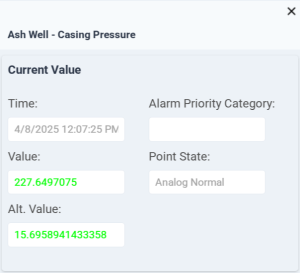
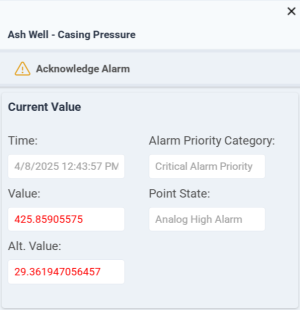
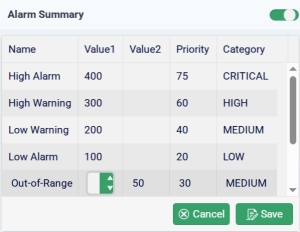
The CygNet Thin Web Client supports its own context menu visible in the web view. Perform the following actions from the TWC context menu:
See Using the Thin Web Client Context Menu for more information. |
|
 (Edit) then click on the Value or Priority you want to edit.
  (Cancel) to abort and return to the read-only mode.
 (
( (Close) to close the context menu and return to the TWC page that launched the menu.