The Screen has numerous properties available for configuration in the Properties pane. The following topic describes a basic workflow for configuring this control. The specific appearance and functionality of the object you create depends on your needs and implementation of the control's properties, each of which is described below.
 To configure a screen or object
- In design mode, create a new Canvas screen or object.
- Configure the Style property.
- Style —
 The Style property defines the style sheet applied to an object on a screen. A style sheet consists of a predetermined list of properties and property values configured for a particular control type.
 - Click
 to reveal a drop-down menu of predetermined styles configured for the selected control.
 - Select a desired style and its properties will be applied to the control.
- Alternately, you can create a new style based on other property values configured for the control.
- Or you can select <None> to remove subscription to any style.
Styles are created in two ways:
- In the control's Properties pane. Click
 (Add a new style based on this control) next to the Style property, after you have configured property values in the Properties pane. See Add a new style based on a control for more information.
 - In the Canvas Settings in the Backstage view. The default style for any control is configured in the Backstage view. See Manage style sheets in the Backstage view for more information.
Tip: You can also change a control's Style on the Controls view of the Screen pane.
- Click
- Configure the Screen properties. See To configure screen properties below.
- Configure the Default Chart properties. See To configure default chart properties below.
- Configure the Default Series properties. See To configure default chart series properties below.
- Configure the CygNet connection properties. See To configure the CygNet connection below.
- Configure the Facility Navigation property.
- Facility navigation mode — See Navigation by Facility for more information about using this property. The Facility navigation mode (FacilityNavigationMode) property is included on the screen object to determine how a screen will handle a request to navigate to another screen via a facility. This property is used with the NavigateByFacility or OpenedViaHyperlink events to link to a facility's associated screen or replace a current screen in a Navigator control with a facility's associated screen. Click to reveal a drop-down menu of options:
- Script event —
Fires a NavigateByFacility script event on the screen that provides the associated screen path, as well as any optional facility record properties, to send when this navigation is triggered. The EventArgs type for this event is:
NavigateByFacility event
Canvas.Shared.Events.NavigateByFacilityEventArgs
The associated screen path for the facility is configured in the facility record in CygNet Explorer. The screen path facility attribute, and any optional facility record properties to be included when this navigation is triggered, is configured in the Backstage view.
- Hyperlink - Open — Opens the facility's associated screen in a new window.
- Hyperlink - Replace — Replaces the current screen with the facility's associated screen.
- Hyperlink - Replace with navigation — Replaces the current screen with the facility's associated screen and adds a navigation toolbar.
- Navigator - Replace — Notifies any Navigator controls on the current screen to replace the active screen with the facility's associated screen.
- Navigator - Replace with navigation — Notifies any Navigator controls on the current screen to replace the active screen with the facility's associated screen and add a navigation toolbar.
The default value is Hyperlink - Open.
- Script event —
- Configure the Grid properties. See To configure layout grid properties below.
- Configure the Location properties.
- Height —
The Height property specifies the height of the control (or screen).
Tip: You can also change the height of a control using the Settings pane (click on the
 (Settings) to the right of the control in design mode) or on the Controls view of the Screen pane.
 - Width —
The Width property specifies the width of the control (or screen).
Tip: You can also change the width of a control using the Settings pane (click on the
(Settings) to the right of the control in design mode) or on the Controls view of the Screen pane.
- Configure the Global Settings File properties for this screen or object.
- Path —
- Source —
The Path property specifies the path to the global settings file (.gsf) for the screen or object. When a new screen is configured, the path to the global settings file specified in the General Settings is copied to the screen. See Configuring Global Settings for more information about this file. The global settings file must be saved in the BSS. Click  to access the Select File dialog box to access an APPS or BSS folder.
The Source property specifies the source of the global settings file for the screen or object. When a new screen is configured, the path to the global settings file specified in the General Settings is copied to the screen. See Configuring Global Settings for more information about this file. The global settings file must be saved to the BSS.
- Configure the Alarm Notifier property.
- Show alarm notifier — The Show alarm notifier property indicates whether the alarm notifier is visible on this screen when opened in Canvas.View and Canvas.View.Lite. This property is set to true (On) by default and the alarm banner will always appear at the top of a screen in run mode, unless you turn it off in design mode.
Note: Alarm sounds will still play in the screen, even if Show alarm notifier property is disabled (Off).
- Add and configure other controls as required.
- Save the screen.
- Run the screen to test your configuration.
To configure screen properties
- Find the Screen properties and configure for the screen:
- Background color — The Background color property specifies the color used for the background of the control. Click to customize the color using the color picker.
- Background color source —
The Background color source property specifies the color source for the background color of the screen, object, or control. Two options are available:
- Auto — Overrides the background color with a theme-appropriate color (default).
Note:
Auto is not supported as a color source in TWC screens. If a property specifies Auto for color configuration, the screen will use the <Self> color that is specified in the Canvas file during the publishing process. See Color on TWC Screens. - <Self> — The color selected in the Background color property will be used.
The default option is Auto.
- Auto — Overrides the background color with a theme-appropriate color (default).
- Color palette — The Color palette property specifies the color palette to use for the CygNet-aware controls on this screen. Select the desired palette from the drop-down menu. Select None to use the default CygNet point state colors. This is the default value.
See Configuring Color Palettes for more information.
- Context menu items — See To configure custom context menu items below.
- Is pan/zoom control visible — The Is pan zoom control visible check box indicates whether to display the pan and zoom control on the screen in run mode. Pan and zoom are always enabled in design mode; the control is optional in run mode.
- Is pan/zoom enabled —
The Is pan/zoom enabled check box indicates whether the user can pan horizontally and vertically or zoom in and out of the screen. Both panning and zooming change the view — the current location and magnification of the screen. Every time you zoom or pan, you establish a new view. Pan and zoom are always enabled in design mode; the control is optional in run mode.
Note: Enabling this will negatively impact screen load performance and disable the ability to dynamically add controls via script.
Note: The new run mode implemented in Canvas v9.4 and later does not support panning and zooming. Thus, Canvas has retained the old method of running screens for backwards compatibility. If you need to pan and zoom on a specific screen (configured via the IsPanZoomEnabled property on a screen), you will not be able to take advantage of the performance improvements the new run mode supports. The legacy run mode is accessible from the Run icon on the Canvas toolbar: Run > Run current screen (Legacy).
- Title — The Title property specifies the title of the screen.
- Unique name — The Unique name property specifies a unique name for the screen (corresponding to a globally unique ID (GUID)), which is used when creating an assembly for the screen's script. When a screen is saved, any script assemblies are compiled into a uniquely named .dll file and added to the .can file, so the script does not have to be recompiled every time the screen is run. When a screen is loaded in Canvas preview or Canvas.View, the precompiled .dll is extracted to a temporary folder and the script assembly is loaded from disk resulting in faster load times by removing the need to recompile script. This property specifies that unique name. Under most circumstances, this will not need to be changed and can be ignored. See Screen Load Time for more information.
- Add and configure other controls as required.
- Save the screen.
- Run the screen to test your configuration.
To configure custom context menu items
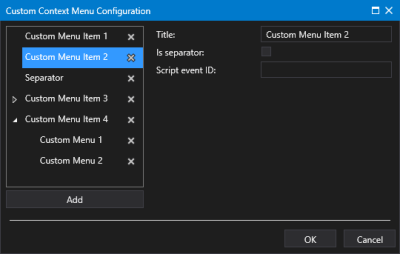
The Custom Context Menu Configuration dialog box is where you configure any custom context menu items that will appear in the right-click context menu for the screen or control. Each custom context menu option will call an event into script so that you can customize screen or control behavior. The custom context menu options will appear at the bottom of the fixed context menu options, separated by a line.
Perform the following steps to configure a custom context menu.
|
Sample Custom Context Menu Configuration dialog box |
- Click to open Custom Context Menu Configuration dialog box.
- Click Add to add a menu item.
- To add child menu items, select the parent menu item and click Add. You can add multiple nested menu items if desired.
- Click
 to expand the menu items.
 - For each menu item click on <New> to reveal the properties:
- Title — The Title property specifies the menu name to be displayed in the runtime context menu.
- Is separator — The Is separator check box indicates whether this menu item will be a separator line in the menu at runtime. Once saved the separator has no configuration and no children. Separators do not have event IDs. Any event ID on a menu item when it’s converted to a separator is deleted. You can give it a title of 'Separator" or "----------" if desired.
- Script event ID —
 The Script event ID specifies the event ID that will be called when the menu item is selected from the runtime right-click context menu. The event ID is passed in as a parameter into the Custom Context Menu Action event, along with other relevant information in the context of the click, for example, facility or point tag, as appropriate.
- Title —
- Menu items can be easily reordered by dragging and dropping an item to a new location in the list.
- Or click
 (Delete this item and its children) to remove a selected menu item as necessary.
 - Once the context menu items are configured, click OK to save.
- Or click Cancel to abort and close the Custom Context Menu Configuration dialog box.
To configure default chart properties
- Find the Default Chart properties and configure each property for the default chart that can be displayed for the screen. See Default Chart for more information.
- Begin date — The Begin date or Start or Start date property specifies the start date and time for a control (or screen or chart or column) for an absolute date and time view window. The format is MM/DD/YYYY hh:mm:ss AM/PM. The default value is the system date and time at which the control was first added to the screen. Click
 to change the date using the date picker.
 - Begin relative date — The Begin relative date or Relative start date or Start property specifies a wildcard string defining the amount of time by which to adjust the start date and time. The space-separated elements in this string must be of the form: "x-#", "x+#", or "x=#" where # is an integer and x is one of the following unit specifiers: y — Year, m — Month, d — Day, H — Hour, M — Minute, S — Second, and # is an integer. T wildcard is also supported and must be in the form: T, T+#, T-#, where T represent today at midnight, T-1 is yesterday at midnight, and T+1 is tomorrow at midnight, etc. Any integer can be used. For example, H-8 represents data from the 8 hours before the current hour, d+3 represents data 3 days after the current day, and d+2 H+1 M+30 represents data 2 days, 1 hour and 30 minutes after the current date and time. d-4 H=6 sets the relative start date and time to four days ago (d-4) at 6:00 a.m. (H=6). See Date and Time Wildcards for more information about adjusting relative time.
- Default chart file —
- Click to access the Open dialog box and select either:
- Click BSS to access an APPS or BSS folder.
- Browse to the folder and file you want to open.
- Click Local to access a local or network file-system folder.
- Browse to the folder and file you want to open.
- Click OK to save the file path.
- Or click Cancel to abort and close the Open dialog box.
- Default chart file source —
- BSS — Indicates that the file is stored in an APPS or BSS folder
- Local — Indicates that the file is stored in a local or network file-system folder.
- End date — The End date or End property specifies the end date and time for a control (or screen or chart or column) for an absolute date and time view window. The format is MM/DD/YYYY hh:mm:ss AM/PM. The default value is the system date and time at which the control was first added to the screen. Click to change the date using the date picker.
- End relative date — The End relative date or Relative end date or End property specifies a wildcard string defining the amount of time by which to adjust end date and time. The space-separated elements in this string must be of the form: "x-#", "x+#", or "x=#" where # is an integer and x is one of the following unit specifiers: y — Year, m — Month, d — Day, H — Hour, M — Minute, S — Second, and # is an integer. T wildcard is also supported and must be in the form: T, T+#, T-#, where T represent today at midnight, T-1 is yesterday at midnight, and T+1 is tomorrow at midnight, etc. Any integer can be used. For example, H-8 represents data from the 8 hours before the current hour, d+3 represents data 3 days after the current day, and d+2 H+1 M+30 represents data 2 days, 1 hour and 30 minutes after the current date and time. d-4 H=6 sets the relative end date and time to four days ago (d-4) at 6:00 a.m. (H=6). See Date and Time Wildcards for more information about adjusting relative time.
- Override chart dates — The Override chart dates check box indicates whether to use the screen's dates, when displaying charts for this screen.
- Rollup period —
The Rollup period property works in conjunction with the Rollup unit to define the interval by which a specified Rollup type takes place. For example, if you selected Minutes from the Rollup unit drop-down menu, then typed 3 in the Rollup period field, rollups for the control would occur every three minutes. Enter only whole numbers.
Note: If rollups are configured for a default chart four labeled rollup series will be added to the chart:
- Real Time — no rollup
- Min — Calculated minimum
- Max — Calculate maximum
- Mean — Calculated mean
- Rollup unit —
- None (default)
- Minutes
- Hours
- Days
- Seconds
- Top of subunit —
- Use relative date —
The Use relative date check box indicates whether to use relative dates and time for the chart. Use the Begin/Start and End properties to specify the relative date ranges to use in the chart.
If Use relative date is unchecked all dates and time will be absolute. Use the Begin/Start and End properties to specify the absolute date ranges to use in the chart.
The Default chart file property specifies the path to the chart file associated with this screen.
This property specifies the source of the file, object file, screen file, image file, or video file. Options include:
The Rollup unit property options define the time units by which a specified Rollup type takes place. The Rollup Unit options are as follows:
For instance, if you select Minutes, rollups occur on a minute basis. The interval is further defined by the Rollup Period setting, which defines how many (in this case) minutes long a rollup period is.
The Rollup top of subunit property enables you to specify the time offset by which a rollup is evaluated with greater precision. Subunit refers to the next smaller unit of time from the time unit defined in the Rollup unit property. So, if Rollup unit is set to hours, the implied rollup subunit would be set to minutes. The numeric value is the number of subunits added to starting time of each cell or series.
Using the example of hours and minutes, if the starting time of an item would otherwise have been 09:00 AM, if subunits is set to 15, the starting time of that item would be 09:15 AM.
- Add and configure other controls as required.
- Save the screen.
- Run the screen to test your configuration.
To configure default chart series properties
- Find the Default Series properties and configure each property for the default chart that can be displayed for the screen. See Default Chart for more information.
- Label background color — The Label background color property specifies the background color of the label associated with the point in the default chart series.
- Label connector color — The Label connector color property specifies the color of the label border and the connector line linking the label to the point in the default chart series.
- Label text color — The Label text color property specifies the color of the text on the label associated with the point in the default chart series. The text color is sometimes known as the foreground color.
- For each color property Click to customize the color using the color picker.
- Point size — The Point size property specifies the size of the point displayed on the default chart series. The default value is 5.
- Series type —
The Series type property specifies the style to use for the chart series. Click
to select an option from the drop-down menu. Options include: - Bar — A bar chart visualizes data as a set of rectangular bars, with the length of each bar representing the value of each data point. Each bar is the color assigned to the series.
- When adding a series showing custom non-CygNet data in a Bar chart type via script, you must set the color at the point level. This allows for points to be colored differently from each other.
- Line — A line chart shows information as a series of data points connected by straight lines. This is the default series type for the chart.
- LineArea — An line area chart is based on the line chart and shows information as a series of data points connected by straight lines, with the area between the X-axis and the line filled with the line color.
- Spline — A spline chart is a line chart where data points are connected by a smooth curve.
- SplineArea — A spline area chart is based on the spline chart where data points are connected by a smooth curve, with the area between the X-axis and the line filled with the line color.
- Step — A step chart is a line chart in which data points are connected by horizontal and vertical lines, looking like a series of steps.
- StepArea — A step area chart is based on the step chart where data points are connected by horizontal and vertical lines, looking like a series of steps, with the area between the X-axis and the steps filled with the line color.
Click here to see an example of each type of series.
- Bar — A bar chart visualizes data as a set of rectangular bars, with the length of each bar representing the value of each data point. Each bar is the color assigned to the series.
- Show point labels — The Show point labels check box indicates whether the series will display a label associated with each point value in the default chart series when in run mode. The labels will dynamically reorient their position when you resize or reshape a screen.
- Show points — The Show points check box indicates whether the series will display a point at the location of each value on the default chart series.
- Add and configure other controls as required.
- Save the screen.
- Run the screen to test your configuration.
To configure the CygNet connection
The source of your CygNet data can be explicitly configured on the screen and passed to controls.
- Find the CygNet property groups and configure the following properties:
- Broadcast facilities — The Broadcast facilities check box indicates whether to notify other screens when this screen's facility selection changes. When enabled, and when a screen's facility selection changes, Canvas will broadcast the list of facilities out to all other screens open in the application that are configured to source their facility from <Broadcast>.
- Broadcast SiteService — The Broadcast SiteService check box indicates whether to notify other screens when this screen's SiteService selection changes. When enabled, and when a screen's SiteService selection changes, Canvas will broadcast the SiteService out to all other screens open in the application that are configured to source their SiteService from <Broadcast>.
- CygNet connection — The CygNet connection property is used to configure the facility and SiteService associated with this control or screen. Two selection modes are available: a) by Facility tag or b) by SiteService / Facility. This split configuration allows for the inheritance of these properties from other controls, or the specific configuration of the SiteService or the facility, while dynamically changing the other. This use case may be rare; therefore, the Facility tag option is the default. Click to reveal a drop-down area where you can configure the Selection mode, source SiteService, and source Facility. Each option is described below.
- Selection mode —
The Selection mode property is used to determine how the control will receive CygNet information from other controls or from itself. Two options are available; click the desired radio button:
- Facility tag — The Facility tag selector consists of a Source chooser and Resolve to a relative facility check box. If the Source is <Self> a Facility tag selector and relative facility options are also displayed. Facility tag is the default option.
- SiteService / Facility — The SiteService / Facility selector consists of Source and SiteService and facility choosers.
Sending and receiving facility tags
Some controls on the same screen allow for the sending of facility information from one control to another.
- On the sending control configure the Facility sender mode property to send facility tag information to another control on the same screen.
- On the receiving control configure the Selection mode property (in either CygNet connection or Point configuration section) to Facility tag and select the Facility Source to the sending control.
- On the receiving control configure a display tag that associates to a facility property, e.g., %FacilityTag%.
Example
Add a control to a screen (e.g., a Tag Chooser or Grid) and configure it as a facility sender to send a facility to the screen. Add another control to the screen (e.g., a Text Tool or Donut) and configure it to receive the facility from the screen. In this scenario the Tag Chooser or Grid will send a facility to the screen and the screen will then send the facility to a Text Tool or the Donut.
- SiteService — The SiteService property is where you specify the source of the SiteService for the control (or screen) to use. The source for the SiteService can be explicitly configured for this control or it can be received from another control on the same screen, or from the screen, or from another screen. Click to reveal the SiteService selector. Options include:
- Source — Options include <Self> or Screen (default):
- <Self> — Select <Self> to explicitly configure the SiteService for this control or screen element. A SiteService selector is displayed:
- SiteService — The SiteService property specifies the SiteService for which the control (or screen or screen element) is to display data. Click to select a service using the Select Service dialog box.
- SiteService — The SiteService property specifies the SiteService for which the control (or screen or screen element) is to display data. Click
- <Self> — Select <Self> to explicitly configure the SiteService for this control or screen element. A SiteService selector is displayed:
- Screen — Select Screen to receive the SiteService from the screen for this control or screen element. By default, the sender is the Screen control if no other senders have been configured.
- Facility — The Facility tag or Facility property is where you specify the source of the facility for the control (or screen) to use. The source for the facility can be explicitly configured for this control or it can be received from another control on the same screen, or from the screen, or from another screen. Click to reveal the Facility tag or Facility selector. Options include: Click to reveal the Facility selector. Options include:
- Source — Options include <Self>, Screen (default), or a list of Sender controls.
- <Self> — Select <Self> to explicitly configure the facility for this control. A Facility tag or Facility selector is displayed, depending on the Selection mode:
- Facility — The Facility property specifies the facility for which the control (or screen) is to display data. Click to select a facility using the Select Facility dialog box.
- Facility Tag — The Facility tag property specifies the full facility tag identifier for which the control (or screen) is to display data. Click to select a facility using the Select Facility Tag dialog box.
- Facility — The Facility property specifies the facility for which the control (or screen) is to display data. Click
- Screen — Select Screen to inherit the facility from the screen for this control. By default, the sender is the Screen control if no other senders have been configured. Once Screen is selected Inherited from Screen will display for the Facility property.
- Sender — A list of sender controls that have been configured with a facility will be displayed. Select the name of the control that will send its facility to this control. By default, the sender is the Screen control if no other senders have been configured. Once a sender control has been specified its name will display in the Source field.
- Resolve to a relative facility — The Resolve to a relative facility check box redirects the source of the facility to a relative facility, overriding the configured source facility. Once selected a list of configured Relative links is displayed. See Using Relative Facilities in Canvas for more information about configuring and scripting relative facility links.
- Relative link — The Relative link property specifies a list of all available relative facility paths. Click to reveal a drop-down menu of all available relative facility definitions (relative links). Select a link from the list. If an order-in-type attribute is specified for the selected link, the Order in type field will display.
- Order in type — The Order in type property specifies the attribute value used to represent the order in type (facility ordinal) if the relative facility definition is configured for one. It is possible to have multiple relative facility definition sets with the same definition name. In this case, if the specified Relative link is configured for ordinalization, then you need to configure the attribute value in the box.
- Relative link — The Relative link property specifies a list of all available relative facility paths. Click
- Configure other control properties as necessary.
- Save the screen.
- Run the screen to test your configuration.
To configure layout grid properties
- Find the Grid properties and configure for the screen:
- Grid color — The Grid color property specifies the color of the lines in the layout grid. Click to customize the color using the color picker.
- Grid color source —
The Grid color source property specifies the color source for the layout grid on the screen. Two options are available:
- Auto — Overrides the grid layout color with a theme-appropriate color (default).
Note:
Auto is not supported as a color source in TWC screens. If a property specifies Auto for color configuration, the screen will use the <Self> color that is specified in the Canvas file during the publishing process. See Color on TWC Screens. - <Self> — The color selected in the Grid color property will be used.
The default options is Auto.
- Auto — Overrides the grid layout color with a theme-appropriate color (default).
- Grid height — The Grid height property specifies the height of the layout grid. The default is 10 pixels high.
- Grid width — The Grid width property specifies the width of the layout grid. The default is 10 pixels wide.
- Show grid — The Show grid property indicates whether to show the grid lines in design mode. By default the layout grid will be displayed. The grid will always be hidden in run mode.
- Snap to grid — The Snap to grid property indicates whether controls should snap to the grid. The default value is true.
- Snap to items — The Snap to items property indicates whether controls should snap to other controls. The default value is true.
- Add and configure other controls as required.
- Save the screen.
- Run the screen to test your configuration.


