The Detail control has numerous properties available for configuration in the Properties pane. The following topic describes a basic workflow for configuring a Detail control. The specific appearance and functionality of the detail object you create depends on your needs and implementation of the control's properties, each of which is described below.
 To configure a Detail control
- In design mode, create a new Canvas screen.
- Find the Detail control on the Toolbox pane and drag a desired object to your screen.
-
Use the Settings pane to apply common settings (sizing, grouping, alignment, etc.) to this object (and others) on your screen.
- Optionally, use the Name property to rename the object if you plan to reference it in another screen or control, or plan to script this control.
- Configure the Style property.
- Style —
 The Style property defines the style sheet applied to an object on a screen. A style sheet consists of a predetermined list of properties and property values configured for a particular control type.
 - Click
 to reveal a drop-down menu of predetermined styles configured for the selected control.
 - Select a desired style and its properties will be applied to the control.
- Alternately, you can create a new style based on other property values configured for the control.
- Or you can select <None> to remove subscription to any style.
Styles are created in two ways:
- In the control's Properties pane. Click
 (Add a new style based on this control) next to the Style property, after you have configured property values in the Properties pane. See Add a new style based on a control for more information.
 - In the Canvas Settings in the Backstage view. The default style for any control is configured in the Backstage view. See Manage style sheets in the Backstage view for more information.
Tip: You can also change a control's Style on the Controls view of the Screen pane.
- Click
- Configure the Location properties. See To configure location, size, resizing, layer, and visibility properties below.
- Configure the Script property.
- Include in script —
 The Include in script check box indicates that the control will appear in the objects collection of the screen (if scripting is enabled). To optimize performance, best practice dictates that you only include the controls you need to manipulate via script. Other controls should be excluded. When you add an event to a control, it will be automatically added to script and the Include in script property (and the In Script check box on the Controls view) will be set to True.
 Tip: You can also change the Include in Script setting on the Controls view of the Screen pane.
- Configure the Display properties on the Detail control. See To configure display properties below.
- Configure the Detail properties to configure specific control options (color settings).
- Color configuration — The Color configuration drop-down contains all options required to specify the color properties of the control. Click to reveal a set of color options where you can specify the source of the color to be used for the elements of the control. The Color configuration box consists of the following options.
- Background color — The Background color property specifies the color used for the background of the control.
- Text color — The Text color property specifies the color used for the text on the control or map visual.
-
For each color property select the Source and Color:
- Source — Click to reveal three options:
- Auto — The color will automatically follow the selected client theme regardless of the underlying color palette (by selecting Auto). Where applicable, color-related properties will default to this configuration, allowing them to automatically follow the theme of the current client rather than fixing them to the one used when the screen was created. By using Auto for the color configuration, a screen developer can work in their preferred theme without affecting the presentation of the final screen when displayed by the user—avoiding display problems such as white text over a very light background, etc.
Note:
Auto is not supported as a color source in TWC screens. If a property specifies Auto for color configuration, the screen will use the <Self> color that is specified in the Canvas file during the publishing process. See Color on TWC Screens. - Point State — Select Point State to specify that the source of the color corresponds to the point state color defined for the point represented in the element. The default point state colors for a CygNet system are defined by the system’s point scheme.
- <Self> — Select <Self> to explicitly configure the color. When <Self> is selected a Color field is automatically displayed beneath the Source field and must be configured.
- Auto — The color will automatically follow the selected client theme regardless of the underlying color palette (by selecting Auto). Where applicable, color-related properties will default to this configuration, allowing them to automatically follow the theme of the current client rather than fixing them to the one used when the screen was created. By using Auto for the color configuration, a screen developer can work in their preferred theme without affecting the presentation of the final screen when displayed by the user—avoiding display problems such as white text over a very light background, etc.
- Color — Only displays if the Source is <Self>. Click to customize the color using the color picker.
- Source — Click
- Configure the Font Properties. See To configure font properties below.
- Configure the Tooltip properties. See To configure tooltip properties below.
- Configure the point Value properties. See To configure the point value below.
- Configure the Sparkline properties. See To configure sparkline properties below.
- Configure the Alarm Icon properties. See To configure alarm icon and alarm priority ranges below.
- Configure the Flip properties.
- Flip enabled — The Flip enabled property indicates whether to enable flipping of the Detail control when clicked.
- Object path —
The Object path property specifies the path to the object file (.cob) that will be shown on the reverse of the Detail control when flipped. Click
 to open the Open Files dialog box, where you can access:
- BSS — Indicates that the file is stored in an APPS or BSS folder
- Local — Indicates that the file is stored in a local or network file-system folder.
- Object source —
The Object source property specifies the source for the object that will be shown on the reverse of the Detail control when flipped. Options include:
- BSS — Indicates that the file is stored in an APPS or BSS folder
- Local — Indicates that the file is stored in a local or network file-system folder.
- Configure the Generic properties:
- String — The String property specifies a generic string property that can be used when scripting this control. Type a string and reference it in your script as necessary.
- Yes/No — The Yes/No property specifies a generic Boolean yes/no property that can be used when scripting this control. Click the check box to enable the property and reference it in your script as necessary.
- Configure other Detail control properties.
- Save the screen.
- Run the screen to test your configuration.
To configure location, size, resizing, layer, and visibility properties
-
Find the Location properties and configure the size and location properties for the control:
- Height —
The Height property specifies the height of the control (or screen).
Tip: You can also change the height of a control using the Settings pane (click on the
 (Settings) to the right of the control in design mode) or on the Controls view of the Screen pane.
 - Horizontal resize mode —
The Horizontal resize mode property specifies whether and how the control dynamically moves or resizes horizontally when the screen is resized in run mode. Options include:
- None — No resizing occurs.
- Shift — The object will shift horizontally.
- Expand — The object will expand or shrink horizontally the same number of pixels as the screen.
- Proportional — The object expands or shrinks proportionally to the screen.
The default value is None.
- Layer — The Layer property specifies the name of the layer to which this object is assigned. Layers can be used to show, hide, and edit multiple controls on one layer without affecting controls on another layer.
- Type the name of the layer into the Layer field (the name can be a previously created layer or a new layer).
- All layers are listed on the Layers pane, where you can manage the layers for the screen in design mode and run mode.
Tip: You can also edit a control's Layer on the Controls view of the Screen pane.
Note: Layer visibility can be controlled at runtime via the AddLayer, HideLayer, SetLayerVisibility, and ShowLayer methods on the Screen object.
- Lock — The Lock property indicates whether the control is locked to the current position. A locked control cannot be moved via click and drag, or nudged with the arrow keys, or resized.
Tip: You can also toggle the lock setting of a control using the Settings pane (click on the
(Settings) to the right of the control in design mode). - Vertical resize mode —
The Vertical resize mode property specifies whether and how the control dynamically moves or resizes vertically when the screen is resized in run mode. Options include:
- None — No resizing occurs.
- Shift — The object will shift vertically.
- Expand — The object will expand or shrink vertically the same number of pixels as the screen.
- Proportional — The object expands or shrinks proportionally to the screen.
The default value is None.
- Visible — The Visible check box indicates whether the control is visible in run mode.
Tip: You can also change a control's Visible setting on the Controls view of the Screen pane.
- Width —
The Width property specifies the width of the control (or screen).
Tip: You can also change the width of a control using the Settings pane (click on the
(Settings) to the right of the control in design mode) or on the Controls view of the Screen pane. - X —
The X property specifies the location of the control along the horizontal axis. Use the up, down, left, and right arrow keys to nudge a control by 1 pixel. Arrow moves a control by 1 pixel. Ctrl+Arrow moves a control by 10 pixels. Ctrl+Shift+Arrow moves a control by 100 pixels.
Tip: You can also change the location of the control using the Settings pane; click on the
(Settings) to the right of the control in design mode. - Y —
The Y property specifies the location of the control along the vertical axis. Use the up, down, left, and right arrow keys to nudge a control by 1 pixel. Arrow moves a control by 1 pixel. Ctrl+Arrow moves a control by 10 pixels. Ctrl+Shift+Arrow moves a control by 100 pixels.
Tip: You can also change the location of the control using the Settings pane; click on the
(Settings) to the right of the control in design mode. - Z index —
The Z index property is used to determine the order in which controls are layered on top of each other. Controls with higher values will draw on top of those with lower values. The newest control added to a screen will always have the highest value and will be the top layer. Two or more controls can be on the same index (layer).
Tip: You can also change the Z index of a control using the Settings pane (click on the
(Settings) to the right of the control in design mode) or on the Controls view of the Screen pane.
- Configure other Detail control properties.
- Save the screen.
- Run the screen to test your configuration.
To configure display properties
- Find the Display properties and configure the text for the control:
- Bottom information text — The Bottom information text property specifies the text that will appear on the bottom information area on the control. The control can display a static text string, such as a label, legend, tooltip, or a dynamic text string based on point or facility attributes. Dynamic text is built using tokens, which can represent real-time CVS point properties, point configuration properties, and facility properties. In run mode, the tokens are replaced with the attribute's value. Click to configure the static text and/or property tokens using the CygNet Property String dialog box. The default value is the %Units% token.
- Text — The Text property specifies the text that will appear on the face of the control. The item can display a static text string, such as a label, legend, tooltip, or a dynamic text string based on point or facility attributes. Dynamic text is built using tokens, which can represent real-time CVS point properties, point configuration properties, and facility properties. In run mode, the tokens are replaced with the attribute's value. Click to configure the static text and/or property tokens using the CygNet Property String dialog box. For most controls there is no default. For the Detail, Donut, and Tile View controls the default value is the %Value% token.
- Top information text — The Top information text property specifies the text that will appear on the top information area on the control. The control can display a static text string, such as a label, legend, tooltip, or a dynamic text string based on point or facility attributes. Dynamic text is built using tokens, which can represent real-time CVS point properties, point configuration properties, and facility properties. In run mode, the tokens are replaced with the attribute's value. Click to configure the static text and/or property tokens using the CygNet Property String dialog box. The default value is the %Description% token.
- Configure other Detail control properties.
- Save the screen.
- Run the screen to test your configuration.
To configure font properties
- Find the Font properties and configure the font size and text properties for the control:
- Font size (bottom) — The Font size (bottom) property specifies the font size of the bottom text on the control. Only applies if Font size mode is set to Fixed.
- Font size (main) — The Font size (main) property specifies the font size of the main text on the control. Only applies if Font size mode is set to Fixed.
- Font size (top) — The Font size (top) property specifies the font size of the top text on the control. Only applies if Font size mode is set to Fixed.
- Font size (mode) —
The Font size mode property specifies the method used to size the text on the control. Options include:
- Auto — Automatically size the text relative to the size of control.
- Fixed — Size the text using the values specified in the Font size property.
The default value is Auto. The default value for the Text Tool is Fixed.
- Text style — The Text style property specifies the style to use for the text that appears on the control or map visual. Options include: Normal, Italic, or Oblique. The default value is Normal.
- Text weight — The Text weight property specifies the weight to use for the text that appears on the control or map visual. Options are: Normal or Bold. The default value is Normal.
- Configure other Detail control properties.
- Save the screen.
- Run the screen to test your configuration.
To configure tooltip properties
-
Find the Tooltip properties and configure the content of the tooltip for this control:
- Tooltip — The Tooltip property specifies the text that will appear on the tooltip. The text display a static text string, such as a label, legend, tooltip, or a dynamic text string based on point or facility attributes. Dynamic text is built using tokens, which can represent real-time CVS point properties, point configuration properties, and facility properties. In run mode, the tokens are replaced with the attribute's value. Click to configure the static text and/or property tokens using the CygNet Property String dialog box.
Note: A tooltip can be single-line or multi-line.
Type any text, select tokens, and press Enter to separate the lines. If more than five lines are entered, a scroll bar will appear in design mode. The scroll bar does not display in run mode.
Also see the Tooltip Opening event for controls that support tooltips.
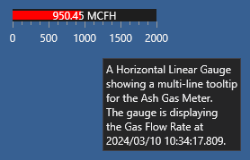
Multi-line tooltip example
- Tooltip enabled — The Tooltip enabled property indicates whether to display a tooltip when the mouse hovers over the control or map visual.
- Tooltip mode —
- Text — The tooltip displays as plain and/or tokenized text defined in the Tooltip property, using resolved point and facility properties.
- Object — The tooltip displays as a Canvas object, passing in the facility tag of the control.
- Script — A TooltipOpening event is fired to allow script to create a custom tooltip.
- Tooltip object path — The Tooltip object path property specifies the path used for the tooltip when Object mode is selected. Click to select a path and file from the Open / Open File / Select File dialog box, where you can access:
The Tooltip mode property specifies how the tooltip will be displayed. Options include:
The default value is Text.
- Configure other Detail control properties.
- Save the screen.
- Run the screen to test your configuration.
To configure the point value
The source of CygNet data for the control can be explicitly configured <Self> or it can be received from the screen or another control. Also configurable is the control's date, time, and value format, whether to display a context menu where you can acknowledge alarms interact with other CygNet information.
- Find the Value properties and configure the date and time format, invalid tag display, point configuration, context menu display, and value format properties of the control.
- Context menu items — See To configure custom context menu items below.
- Date and time format —
The Date and time format property specifies the format for a point's timestamp using any of the valid .NET standard or custom numeric format strings. The date and time format applies to any point's timestamp property. Use this property to override the Default date format, which is configured in the Application settings page of the Backstage view. The default date format is YYYY/MM/DD HH:MM:SS.fff, which corresponds to 2024/01/01 10:20:30.0001. All timestamps are local client time.
If an invalid format is configured for the Date and time format, the control will automatically use the format configured for the Default date format saved in the global settings file, and configured in the Backstage view.
Note: You can also use the Microsoft .NET Standard Date and Time Format Strings to define the text representation of a date and time value in Canvas. For example, "d" is the short date pattern and corresponds to 1/1/2024, "F" is the full date/time pattern and corresponds to Monday, January 1, 2024 1:45:30 PM.
- Hide invalid tag —
The Hide invalid tag check box indicates whether to hide the element (a control, button, image, or map visual item) if it resolves to an invalid or unknown tag.
Note: Invalid point tags and relative facility resolution work in the following way for single-value controls: when a point tag is invalid or unknown, the tag can be hidden using the Hide invalid tag property. In this situation, a control with only facility-based tokens that has a valid relative facility resolution, but results in an invalid point tag, then the point tag will be treated as an invalid tag and displayed accordingly.
There may be a scenario where you want to hide a control when using facility-based attributes and relative facilities. Say you have a templated screen with a Text Tool displaying a Gas Meter, but not all Wells have an associated Gas Meter. You could hide the control for a Well that does not have an associated Gas Meter, and by not specifying a UDC, you can always show (or hide) a facility resolution with facility-based attributes only.
- Point configuration — The Point configuration property is used to configure the CygNet point associated with the control. Click to reveal a drop-down area where you can configure the Selection mode, source Facility tag, source SiteService, source Facility, and the UDC or Long Point ID for the point. Each option is described below.
- Selection mode —
The Selection mode property is used to determine how the control will receive CygNet information from other controls or from itself. Two options are available; click the desired radio button:
- Facility tag — The Facility tag selector consists of a Source chooser and Resolve to a relative facility check box. If the Source is <Self> a Facility tag selector and relative facility options are also displayed. Facility tag is the default option.
- SiteService / Facility — The SiteService / Facility selector consists of Source and SiteService and facility choosers.
Sending and receiving facility tags
Some controls on the same screen allow for the sending of facility information from one control to another.
- On the sending control configure the Facility sender mode property to send facility tag information to another control on the same screen.
- On the receiving control configure the Selection mode property (in either CygNet connection or Point configuration section) to Facility tag and select the Facility Source to the sending control.
- On the receiving control configure a display tag that associates to a facility property, e.g., %FacilityTag%.
Example
Add a control to a screen (e.g., a Tag Chooser or Grid) and configure it as a facility sender to send a facility to the screen. Add another control to the screen (e.g., a Text Tool or Donut) and configure it to receive the facility from the screen. In this scenario the Tag Chooser or Grid will send a facility to the screen and the screen will then send the facility to a Text Tool or the Donut.
- SiteService — The SiteService property is where you specify the source of the SiteService for the control (or screen) to use. The source for the SiteService can be explicitly configured for this control or it can be received from another control on the same screen, or from the screen, or from another screen. Click to reveal the SiteService selector. Options include:
- Source — Options include <Self> or Screen (default):
- <Self> — Select <Self> to explicitly configure the SiteService for this control or screen element. A SiteService selector is displayed:
- SiteService — The SiteService property specifies the SiteService for which the control (or screen or screen element) is to display data. Click to select a service using the Select Service dialog box.
- SiteService — The SiteService property specifies the SiteService for which the control (or screen or screen element) is to display data. Click
- <Self> — Select <Self> to explicitly configure the SiteService for this control or screen element. A SiteService selector is displayed:
- Screen — Select Screen to receive the SiteService from the screen for this control or screen element. By default, the sender is the Screen control if no other senders have been configured.
- Facility — The Facility tag or Facility property is where you specify the source of the facility for the control (or screen) to use. The source for the facility can be explicitly configured for this control or it can be received from another control on the same screen, or from the screen, or from another screen. Click to reveal the Facility tag or Facility selector. Options include: Click to reveal the Facility selector. Options include:
- Source — Options include <Self>, Screen (default), or a list of Sender controls.
- <Self> — Select <Self> to explicitly configure the facility for this control. A Facility tag or Facility selector is displayed, depending on the Selection mode:
- Facility — The Facility property specifies the facility for which the control (or screen) is to display data. Click to select a facility using the Select Facility dialog box.
- Facility Tag — The Facility tag property specifies the full facility tag identifier for which the control (or screen) is to display data. Click to select a facility using the Select Facility Tag dialog box.
- Facility — The Facility property specifies the facility for which the control (or screen) is to display data. Click
- Screen — Select Screen to inherit the facility from the screen for this control. By default, the sender is the Screen control if no other senders have been configured. Once Screen is selected Inherited from Screen will display for the Facility property.
- Sender — A list of sender controls that have been configured with a facility will be displayed. Select the name of the control that will send its facility to this control. By default, the sender is the Screen control if no other senders have been configured. Once a sender control has been specified its name will display in the Source field.
- Resolve to a relative facility — The Resolve to a relative facility check box redirects the source of the facility to a relative facility, overriding the configured source facility. Once selected a list of configured Relative links is displayed. See Using Relative Facilities in Canvas for more information about configuring and scripting relative facility links.
- Relative link — The Relative link property specifies a list of all available relative facility paths. Click to reveal a drop-down menu of all available relative facility definitions (relative links). Select a link from the list. If an order-in-type attribute is specified for the selected link, the Order in type field will display.
- Order in type — The Order in type property specifies the attribute value used to represent the order in type (facility ordinal) if the relative facility definition is configured for one. It is possible to have multiple relative facility definition sets with the same definition name. In this case, if the specified Relative link is configured for ordinalization, then you need to configure the attribute value in the box.
- Relative link — The Relative link property specifies a list of all available relative facility paths. Click
- Point —
The Point property is used to determine how the CygNet point will be configured. Click the appropriate radio button to reveal the desired field.
- UDC — The UDC property specifies the UDC for which the control is to display data. Click to select a UDC using the Select UDC dialog box.
- Long point ID — The Long point ID property specifies the long point ID of the CygNet point for which the control is to display data. Type the tag into the field.
- UDC — The UDC property specifies the UDC for which the control is to display data. Click
- Show context menu —
The Show context menu check box indicates whether a right-click context menu will be available or suppressed in run mode. The default context menu will allow alarm acknowledgment, access to point history and alarm history, point configuration, and facility configuration.
Note: The CygNet Thin Web Client supports its own context menu in the web view. When activated the context menu appears on the right side of the page. From the CygNet TWC web view context menu you can view point values, acknowledge a point in alarm, view and edit alarm values, and add a selected point to an ad-hoc chart. See Using the Thin Web Client Context Menu.
- Value format — The Value format property specifies the format for the point's value using any of the valid .NET standard or custom numeric format strings. The value format applies to a point's Value, Primary Value, and Alternate Value properties. The default value format is #,##0.00, which corresponds to 123,456,789.12. Formats use # and 0, with a period (.) as the decimal separator and comma (,) as the thousands separator. Add additional zeros to show more decimal places.
- Configure other Detail control properties.
- Save the screen.
- Run the screen to test your configuration.
To configure custom context menu items
The Custom Context Menu Configuration dialog box is where you configure any custom context menu items that will appear in the right-click context menu for the screen or control. Each custom context menu option will call an event into script so that you can customize screen or control behavior. The custom context menu options will appear at the bottom of the fixed context menu options, separated by a line.
Perform the following steps to configure a custom context menu.
|
Sample Custom Context Menu Configuration dialog box |
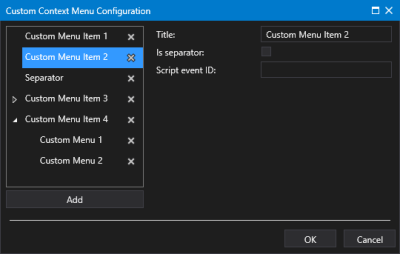
- Click to open Custom Context Menu Configuration dialog box.
- Click Add to add a menu item.
- To add child menu items, select the parent menu item and click Add. You can add multiple nested menu items if desired.
- Click
 to expand the menu items.
 - For each menu item click on <New> to reveal the properties:
- Title — The Title property specifies the menu name to be displayed in the runtime context menu.
- Is separator — The Is separator check box indicates whether this menu item will be a separator line in the menu at runtime. Once saved the separator has no configuration and no children. Separators do not have event IDs. Any event ID on a menu item when it’s converted to a separator is deleted. You can give it a title of 'Separator" or "----------" if desired.
- Script event ID — The Script event ID specifies the event ID that will be called when the menu item is selected from the runtime right-click context menu. The event ID is passed in as a parameter into the Custom Context Menu Action event, along with other relevant information in the context of the click, for example, facility or point tag, as appropriate.
- Title —
- Menu items can be easily reordered by dragging and dropping an item to a new location in the list.
- Or click
 (Delete this item and its children) to remove a selected menu item as necessary.
 - Once the context menu items are configured, click OK to save.
- Or click Cancel to abort and close the Custom Context Menu Configuration dialog box.
To configure sparkline properties
- Find the Sparkline properties and configure the time range, time behavior settings, and x-axis and y-axis configuration settings for the sparkline on the Detail control:
- Auto range x-axis — The Auto range x-axis check box indicates whether the sparkline's x-axis is constrained to the range of values for the associated point or fixed to the configured time range (default). Configure the date and time range in the Range properties below.
- Auto range y-axis — The Auto range y-axis check box indicates whether the sparkline's y-axis is constrained to the range of values for the associated points (default) or fixed to the configured minimum and maximum values. Configure the y-axis scale in the Maximum Y value and Minimum Y value below.
- Date range configuration —
The Date range configuration property is used to configure the range of dates to be trended in the chart or sparkline, whether to enable live data updates, the live update rate, the starting time for a trend, whether to use relative or absolute dates, and the actual date range. Click
to open the Configure Time Range dialog box, where you can configure these properties. You can change the date and time range settings for any chart in run mode via an icon on the chart toolbar. - Enable live updates — The Enable live updates check box indicates whether this chart or sparkline will request new data at a specified interval allowing the chart to trend data at a real-time pace. When live updates are enabled and the next poll occurs, the series line will update to reflect the slope change, if any. The interval at which the trend moves forward is defined in the Update rate. If disabled, a trend is populated once with data from the Value History Service (VHS). You can disable live updates /enable live updates for any chart in run mode via an icon on the chart toolbar. See Live Update Changed for related event.
- Update rate — The Update rate property specifies the number of milliseconds to wait before an auto-updated trend refreshes. The default rate is 200 milliseconds.
- Earliest (span) — The Earliest (span) property specifies the starting date for a trend; that is, the amount of time in the past from when to start the trend. Enter a number in the text box and select a time period from the drop-down menu. For example, 8 Hours ago or 2 Days ago.
- Earliest (units) — The Earliest (unit) property specifies the unit of time in the past from when to start the trend. After entering a number in the text box, select a time period from the drop-down menu. The options include: Seconds, Minutes, Hours, Days, and Years. For example, 60 Seconds ago or 2 Hours ago. The default value is Hours.
- Use relative date — The Use relative date check box indicates whether to use relative dates and time for the chart. Use the Begin/Start and End properties to specify the relative date ranges to use in the chart.If Use relative date is unchecked all dates and time will be absolute. Use the Begin/Start and End properties to specify the absolute date ranges to use in the chart.
- Start (relative date) — The Begin relative date or Relative start date or Start property specifies a wildcard string defining the amount of time by which to adjust the start date and time. The space-separated elements in this string must be of the form: "x-#", "x+#", or "x=#" where # is an integer and x is one of the following unit specifiers: y — Year, m — Month, d — Day, H — Hour, M — Minute, S — Second, and # is an integer. T wildcard is also supported and must be in the form: T, T+#, T-#, where T represent today at midnight, T-1 is yesterday at midnight, and T+1 is tomorrow at midnight, etc. Any integer can be used. For example, H-8 represents data from the 8 hours before the current hour, d+3 represents data 3 days after the current day, and d+2 H+1 M+30 represents data 2 days, 1 hour and 30 minutes after the current date and time. d-4 H=6 sets the relative start date and time to four days ago (d-4) at 6:00 a.m. (H=6). See Date and Time Wildcards for more information about adjusting relative time.
- End (relative date) — The End relative date or Relative end date or End property specifies a wildcard string defining the amount of time by which to adjust end date and time. The space-separated elements in this string must be of the form: "x-#", "x+#", or "x=#" where # is an integer and x is one of the following unit specifiers: y — Year, m — Month, d — Day, H — Hour, M — Minute, S — Second, and # is an integer. T wildcard is also supported and must be in the form: T, T+#, T-#, where T represent today at midnight, T-1 is yesterday at midnight, and T+1 is tomorrow at midnight, etc. Any integer can be used. For example, H-8 represents data from the 8 hours before the current hour, d+3 represents data 3 days after the current day, and d+2 H+1 M+30 represents data 2 days, 1 hour and 30 minutes after the current date and time. d-4 H=6 sets the relative end date and time to four days ago (d-4) at 6:00 a.m. (H=6). See Date and Time Wildcards for more information about adjusting relative time.
- Start (absolute date)— The Begin date or Start or Start date property specifies the start date and time for a control (or screen or chart or column) for an absolute date and time view window. The format is MM/DD/YYYY hh:mm:ss AM/PM. The default value is the system date and time at which the control was first added to the screen. Click
 to change the date using the date picker.
 - End (absolute date)— The End date or End property specifies the end date and time for a control (or screen or chart or column) for an absolute date and time view window. The format is MM/DD/YYYY hh:mm:ss AM/PM. The default value is the system date and time at which the control was first added to the screen. Click to change the date using the date picker.
- Maximum Y value — The Maximum Y value property specifies the maximum value to use on the sparkline's y-axis when the Auto range - y-axis property is set to fixed (disabled).
- Minimum Y Value — The Minimum Y value property specifies the minimum value to use on the sparkline's y-axis when the Auto range - y-axis property is set to fixed (disabled).
- Show sparkline — The Show sparkline indicates whether to show or hide a sparkline in the Detail control. By default the sparkline presents live data updates at a fixed interval trending data at a real-time pace. Use the other Sparkline (Detail) properties to set the line color, x- and y-axis ranges and min/max values, and date ranges, both relative and absolute.
- Sparkline color — The Sparkline color (or Color) property specifies the color of the sparkline. Click to customize the color using the color picker.Note: The default colors used for a Sparkline series are drawn from a set palette and are therefore not theme-specific. See themes for more information.
- Configure other Detail control properties.
- Save the screen.
- Run the screen to test your configuration.
To configure alarm icon and alarm priority ranges
The Alarm icon configuration property is used to configure the alarm icon that can optionally be included in the upper right corner of the Detail control. If enabled in the Show alarm icon property, a customizable icon can be configured to change color based on point state and change image based on alarm priority. Icons will display only when there is an unacknowledged alarm.
Click to configure the icon color source, the associated priority ranges, and the icon image used for each priority in the Configure Alarm Icons dialog box.
Configure Icon Color Source, Alarm Priority Ranges, and Custom Icon
- To enable the alarm icon, do the following depending on the control you are configuring:
- Alarm Grid — Click Show Alarm Icon Column on the Alarm Priority Icon Ranges dialog box, accessible from the Alarm icon column property
- Detail Control — Click Show alarm icon in the Properties pane
- Tile View — Click Show alarm icon in the Properties pane
- Alarm Grid — Click Show Alarm Icon Column on the Alarm Priority Icon Ranges dialog box, accessible from the Alarm icon column property
- Select the source of the icon's color from the Icon color source drop-down menu, which lists the point states of the associated alarm. Options include:
- BackgroundColor — Specifies that the source of the icon's color corresponds to the alarm's point state background color (%pointstatebackcolor%)
- ForegroundColor — Specifies that the source of the icon's color corresponds to the alarm's point state foreground color (%pointstateforecolor%)
- SingleColor — Specifies that the source of the icon's color corresponds to the alarm's point state single color (%pointstatesinglecolor%). This is the default value.
- Click New icon to add a new icon to the list of priorities. Configure the desired priority and associated icon for each range:
- Lowest Priority — Type a value to represent the lower end of the priority range. If you are using the CygNet Standard Point Scheme, the total valid range is 0 to 99, with 0 being the lowest and 99 the highest.
- Priority Range — This read-only column will automatically update to display the range based on the low value you entered, up to the bottom of the next configured range. For example, 0-24, 25-49, 50-74, 75-99 to represent four ranges from 0 to 99.
- Icon — There are three options for icon usage:
- Default icon — Use the default icon provided in Canvas.
- Custom icon without dynamic alarm color — Optionally, supply a custom icon that does not display alarm color. This could be as simple as different shapes and colors that represent the different alarm priority ranges. For example, a blue circle for 0-49, a yellow warning triangle for 50-74, and a red octagon for 75-99, etc. The custom icon must be a Scalable Vector Graphics (.svg) file.
- Custom icon with dynamic alarm color — Optionally, supply a custom icon that will also include a substituted alarm color somewhere inside the image.
To create a customized alarm
- Create (or purchase) your own icon. The icon must be a Scalable Vector Graphics (.svg) file. The properties of the SVG image are defined its XML definition.
- Edit the SVG XML in a text editor and add the string "
alarm-highlight" to the XML class defining the element of your custom icon that you want to have filled using the color specified in the Icon color source from above. For example,<circle id="Alarm" class="st2 alarm-highlight" cx="8" cy="8" r="5.5"/> - Save the file to a known location where it can be accessed by Canvas.
- Browse for the icon file. Click to select a path and file from the Open / Open File / Select File dialog box, where you can access:
- Or click (Delete row) to remove a selected row as necessary.
- Click New icon again to add another priority range and repeat the steps described above.
- Click OK to accept the priority order, ranges, icon and close the dialog box. Click Cancel to close the dialog box without modification.
Note: You can override the default point state colors for this element by creating a custom color palette. See Configuring Color Palettes and Color palette for a screen or object for more information.
Additional Resources
- For more information about alarm priority, see Alarms > Alarms Overview > Alarm Priority, Alarm Priority Category, and Alarm Category
- For more information about point state attributes, see Points > Points Overview > CVS Metadata File > PointStateDefinitions


