Canvas Overview
Canvas provides high-quality screen design functionality, utilizing a variety of specialized tools and controls, which you can use to create user screens to interface with your CygNet Software installation and data. The Canvas plugin model allows the creation of custom or third-party control types, and once added to Canvas they will be available for addition to your screens.
Canvas is a 64-bit application by default. When started the application will detect the platform and will run as 64-bit on a 64-bit machine and 32-bit on a 32-bit machine.
CygNet Thin Web Client
Canvas is the client designer software program required to design, create, build, and configure HMI screens for the CygNet Thin Web Client. Screens are constructed using the design and screen-building components of a web-enhanced version of the CygNet Canvas client. Use Canvas to layout HMI components onto a screen (a page of controls) and configure a logical workflow between controls and related screens. Once published, those screens are converted and compiled into a single page application (SPA) residing on the main web server, which are then viewed in a web browser.
Canvas User Interface
|
Click the thumbnail to see |
|
Click the thumbnail to see |
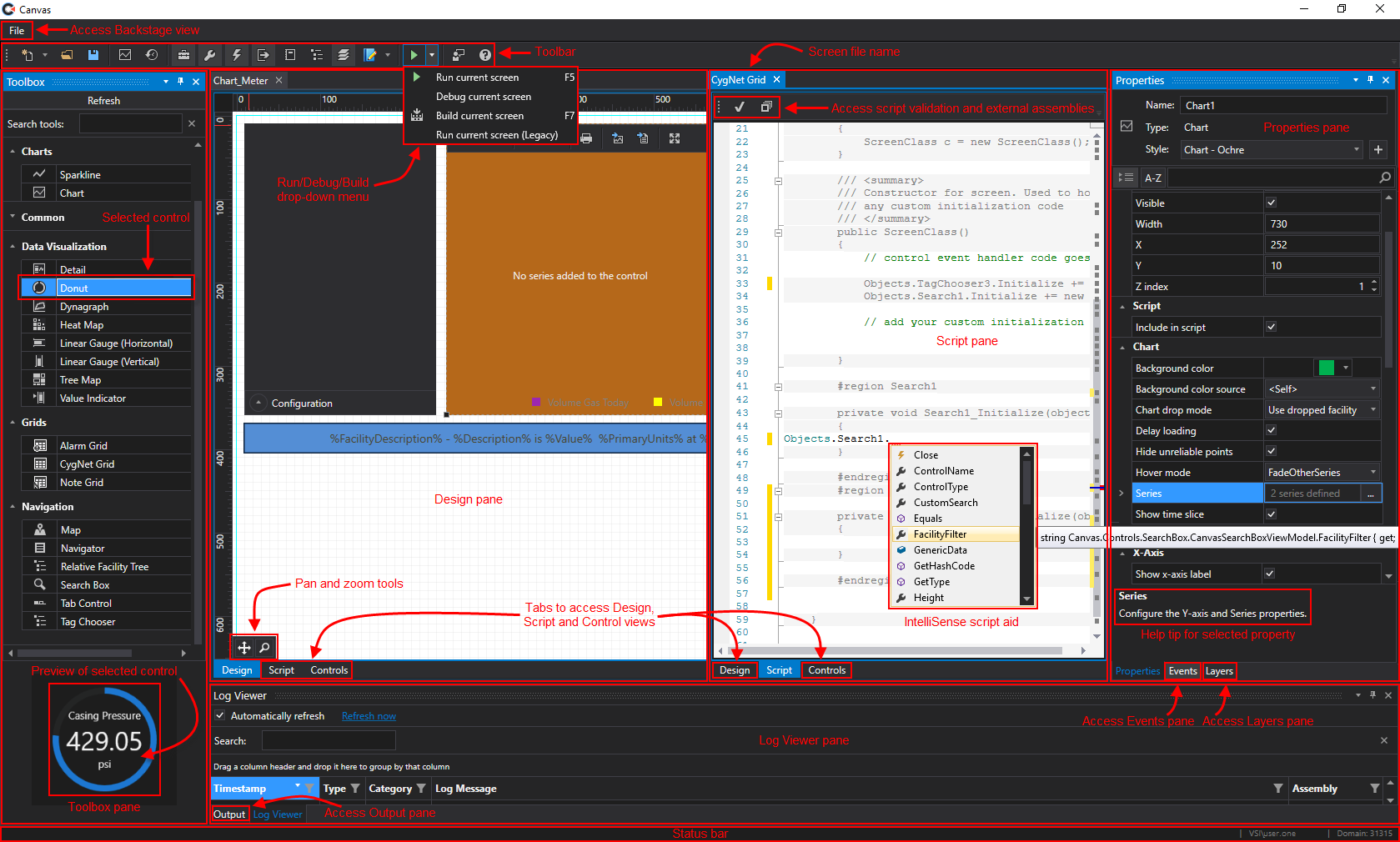

Canvas contains a set of controls and features that are compatible with CygNet Software v9.8 or later, including:
- Screen creation, including style sheets, find and replace, multi-select editing, screen preview, layers
- The following controls provide access to CygNet data (see each control for TWC support):

See CygNet Studio, Canvas, and Thin Web Client Controls for a comparative list of controls in all CygNet HMI clients.
- Support for property inheritance from the screen or other controls and overriding at the control level
- Support for sending and receiving facility information from one control to another
- Support for relative facilities
- Support for facility-based navigation
- Support for on-demand charting
- Support for getting and sending data group transaction data between a CygNet host and field device

- Support for group-based navigation
- Support for navigation by facility
- Support for searching by facility or other custom searching
- Support for custom color palettes to override the default point state colors for any point type
- Support for visual and audio alarm notification
- Script editing in C# or VB.NET
- Custom control framework
- Debugging capabilities
- Canvas.View — A read-only runtime companion application (as CygNet Vision currently is to CygNet Studio)
- Canvas.View.Lite — A read-only fullscreen-only runtime companion application that relies on screen navigation only
Other Canvas Applications
Canvas.View is the read-only runtime companion application to Canvas providing a standard multi-document interface to your Canvas screens. You can also open any CygNet Studio file (.csf) in Canvas.View. Canvas.View.Lite is a very light read-only runtime companion application to Canvas. Canvas.View and Canvas.View.Lite are 64-bit applications by default.
Sample Canvas Screens
Note:
Canvas screen examples are available in two locations:
- in the CANEXAMP folder in the APPS
- in the Clients\Canvas\Screens\Examples folder on the local file system
Be sure to browse through these files to familiarize yourself with how scripting is commonly added to object events.


